Each game has its own loader tile on League Admin. You only see the tile for your league's game. This tutorial has one section per loader: find yours and skip the rest.
| Your game | Tile on League Admin | What you upload |
|---|---|---|
| APBA GO | APBA GO Import | The season export (a .zip of CSV files) |
| Diamond Mind Baseball | Diamond Mind Import | The league folder, zipped |
| Action PC Baseball | APC Baseball Loader | The APC export (.zip) |
| Action PC Football | APC Football Loader | The APC export (.zip) |
| Action PC Hockey | APC Hockey Loader | The APC export (.zip) |
The pictures show the first screen of each loader. The screens after you upload a file show a league's own teams and players, so they are not pictured. Those steps and labels are taken from the pages themselves.
Things that work the same on every loader:
- Recaps and previews start as drafts. When a load finishes, each recap or preview has a Review & publish button. The review page works the same for every game: see Review and publish in Load results: APBA Baseball.
- Claude stories need the AI add-on. Every "Write … with Claude" tick box is greyed out without it, with a note saying so. The recap or preview is still built, with the scores and stats.
- APC Football and APC Hockey: an older file does not roll the stats back. If you load an earlier week's file after a later one, the loader leaves the season stats as they are.
- Baseball: a season kept by game-by-game box score entry cannot take stats from a file. The APBA GO, Diamond Mind and APC Baseball loaders say so and do not load its stats.
APBA GO Import
On League Admin, choose APBA GO Import.
Under Upload Season Export, choose the export .zip file. Check Stat Season is the season to store the stats under.
Choose Upload & Verify.
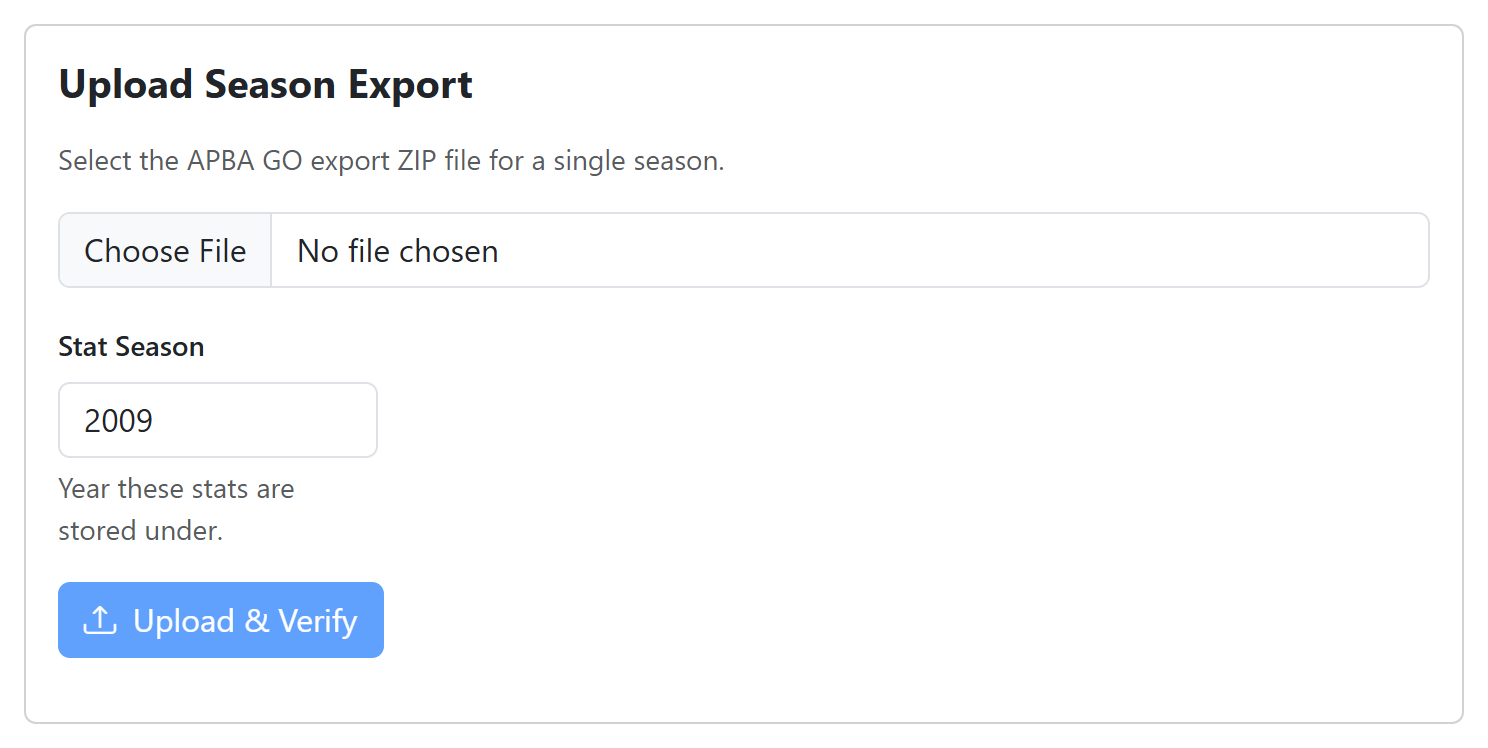
On Review Team Matches, check every team in the export has a team under Matched LTK Team.
Under Import Options, tick what to load: Standings, Team Stats, Player Stats, Fielding. All four start ticked.
Under Weekly Recap, tick Recap the week to put the played games in the schedule and open a draft recap of the games since the last one. Check Week and Games played from.
Choose Run Import. Progress lines appear under Import Progress.
When it is done, the page lists the rows loaded, then the recap with Review & publish the recap.
A team marked No match is skipped. Set that team's APBA GO Code on Team Info (League Admin), then upload the export again.
Players whose names could not be found still have their stats loaded. Choose Show unmatched players to see who they are.
Schedule and weekly preview
APBA GO exports only the games already played. To get a schedule and weekly previews, upload the series still to be played on the Schedule & Weekly Preview card on the same page.
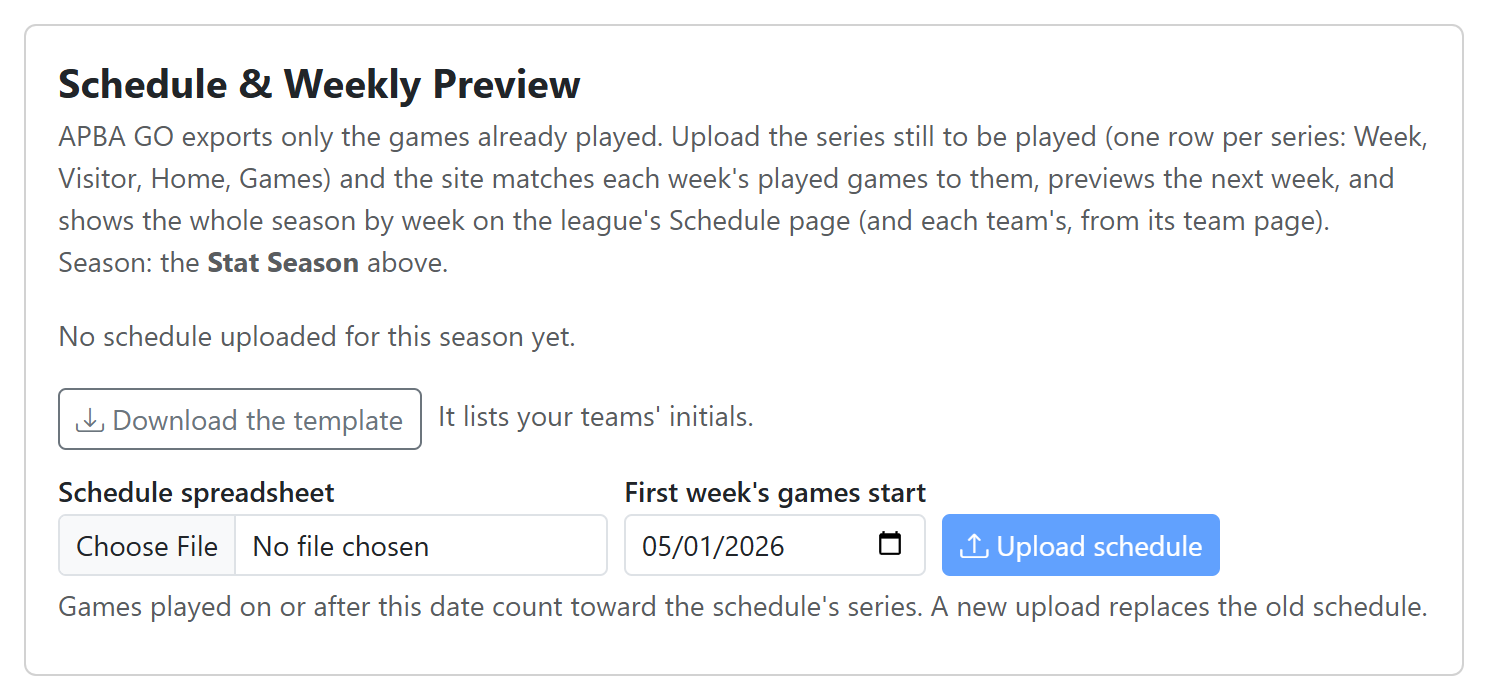
- Choose Download the template. It is a spreadsheet with one row per series (Week, Visitor, Home, Games) and lists your teams' initials.
- Fill it in. Under Schedule spreadsheet, choose the file.
- Set First week's games start. Games played on or after this date count toward the schedule's series.
- Choose Upload schedule. A new upload replaces the old schedule. If the file has problems, they are listed and nothing is saved.
- The card then shows the next week. Choose Build the Week … preview, then Review & publish the preview.
Recaps and previews are listed on the Recaps & Previews tile.
Diamond Mind Import
On League Admin, choose Diamond Mind Import.
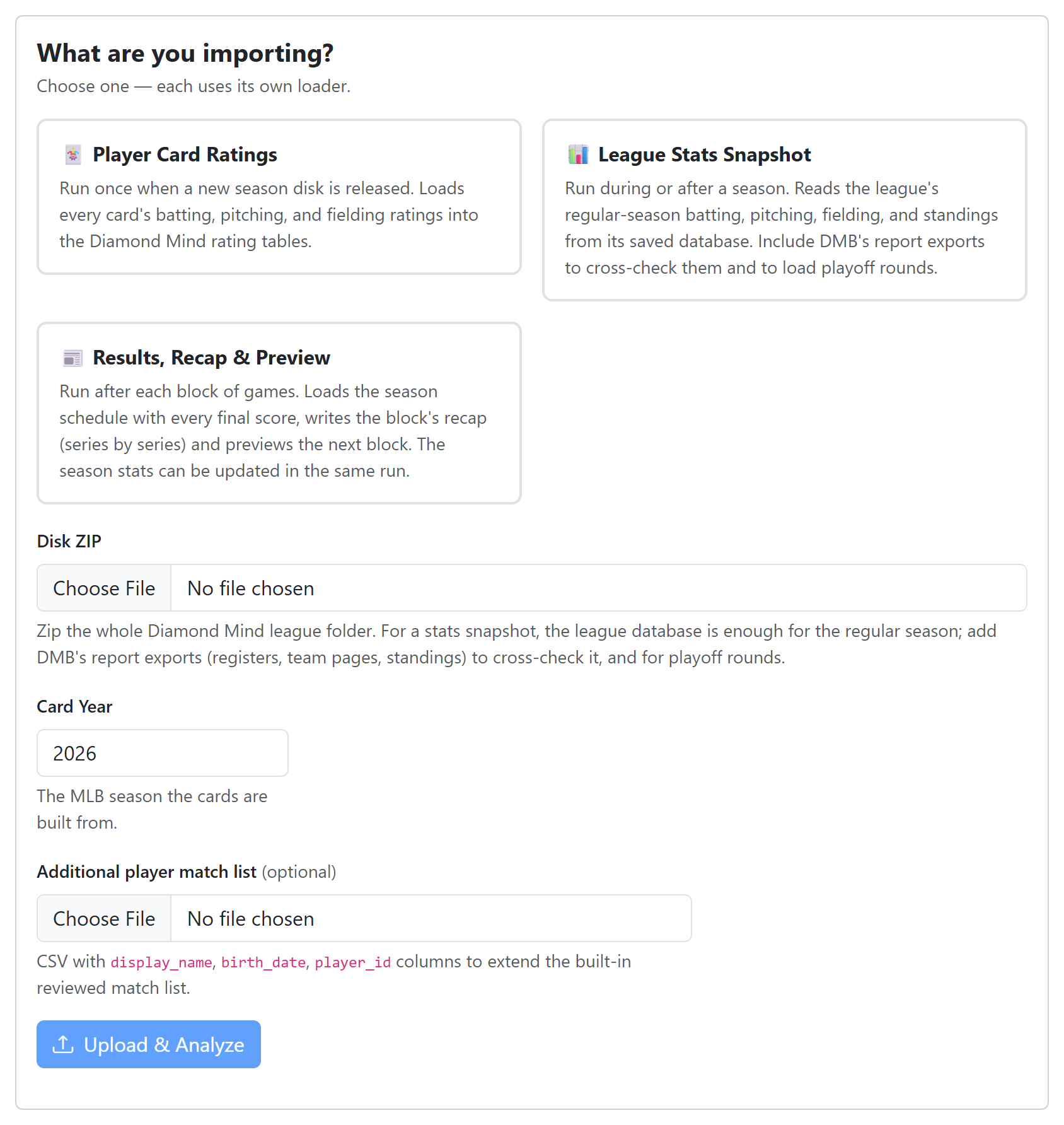
Under What are you importing?, choose one:
- Player Card Ratings: once, when a new season disk comes out.
- League Stats Snapshot: during or after a season, for the full season's stats and standings, and the playoff rounds.
- Results, Recap & Preview: after each block of games.
Under Disk ZIP, choose the zipped Diamond Mind league folder.
Check the year box. Its name changes with your choice: Card Year (ratings), Stat Season (stats snapshot) or Season (results).
Choose Upload & Analyze. It can take a minute.
On Review Snapshot, read any notes. Under Team Mapping, pick a league team for each Diamond Mind team and choose Save Team Mapping. The mapping is remembered for later uploads.
Choose Run Import.
For a stats snapshot, the league database in the zip is enough for the regular season. Add Diamond Mind's report exports (registers, team pages, standings) to cross-check the numbers and to load playoff rounds.
After each block: Results, Recap & Preview
After Upload & Analyze, the review shows how many games have been played and how many box score files the zip has. Then set:
- Recap: Block #: the block number for the recap.
- Games played from: the first date of the block. Leave it empty and no recap is made.
- Preview the next block: how many game days from the next game date go into the preview.
- Write the series stories, Around the League and the Look-Ahead with Claude (AI add-on).
- Also update the season stats from this disk.
Choose Run Import. When it is done, choose Review & publish the recap and Review & publish the preview. Playoff rounds each get their own schedule and round recap.
Diamond Mind keeps each game's line score and pitchers of record, not box scores. So the recap has final scores, line scores and the winning, losing and saving pitchers, but no hitting lines.
Players the loader cannot identify for sure are set aside and listed after the import. They are never guessed.
Recaps and previews are listed on the Recaps & Previews tile.
APC Baseball Loader
On League Admin, choose APC Baseball Loader. The page is called APC Baseball Stat Loader.
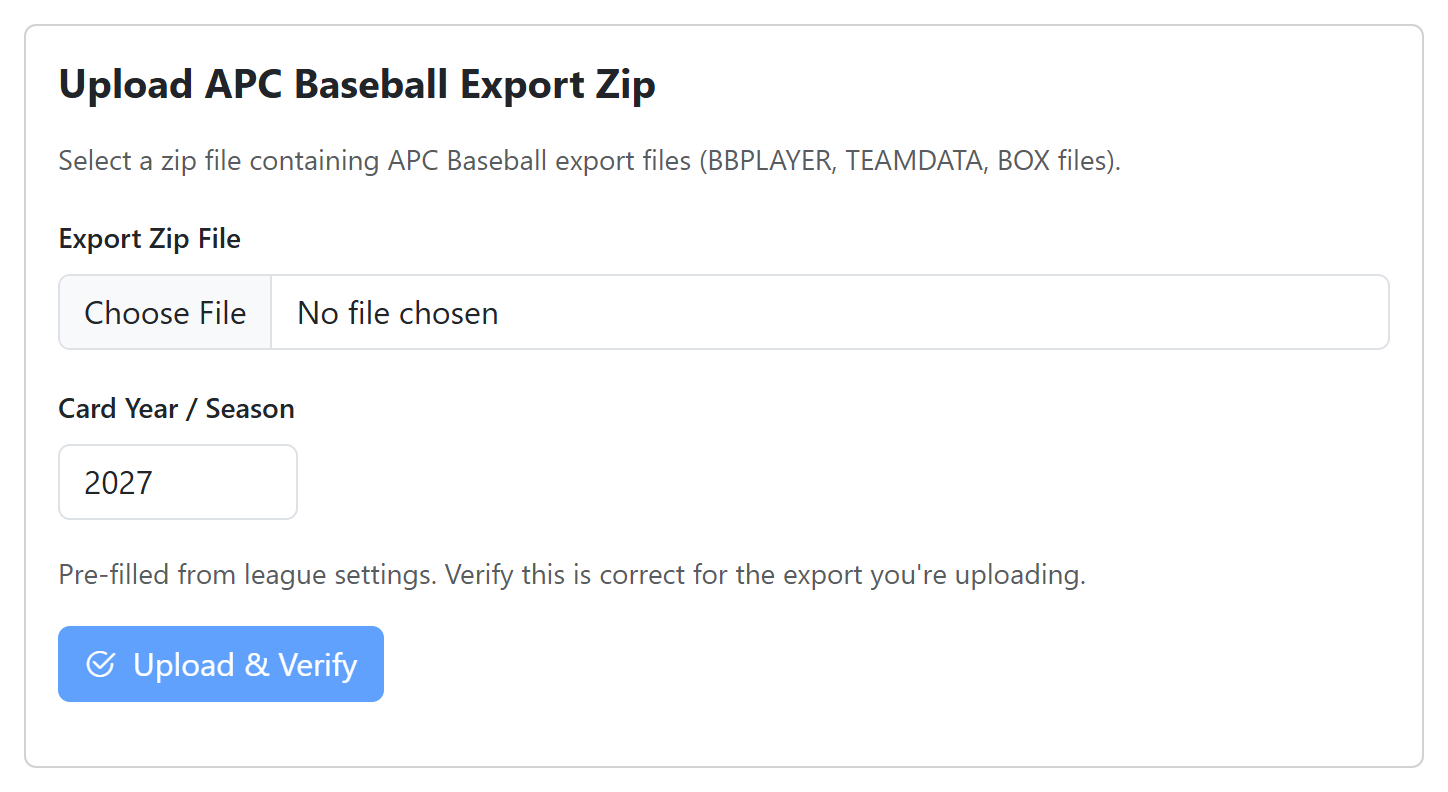
Under Export Zip File, choose the APC Baseball export .zip. Check Card Year / Season.
Choose Upload & Verify. Check the Teams table under Verification Results, then choose Continue.
Under Select Import Mode, choose one:
- Card / Rating Data: player names, teams and APC ratings. Run it before the season.
- League Sim Stats: batting and pitching stats. Run it after the season.
- Results & Recap: the results file after a block is played.
- Playfile Preview: the playfile you send the owners.
Choose Extract & Preview.
Results & Recap
- Check Numbered by (Week, Block, Series or Set), Recap number and Recap games from. Every game played on or after that date goes into the recap. Games already in an earlier recap stay there.
- To build the next block's preview from the same file, tick Also preview the next block from this file and check Preview number and Days in the block.
- Write the series stories and Around the League with Claude needs the AI add-on.
- Choose Load Results & Recap.
- When it is done, choose Review & publish on the recap (and on the preview, if you built one).
This mode loads the schedule, box scores and recap. It does not update the season stats; League Sim Stats does that.
Playfile Preview
Check the preview number and Days in the block, then choose Build the Preview. When it is done, choose Review & publish. The playfile is attached to the preview email.
Recaps and previews are listed on the Recaps & Previews tile.
League Sim Stats
After Extract & Preview, check the top batters and pitchers. Tick Compute Auto-Awards only on the final stats upload of the season, after every playoff round. Choose Import to Database.
If the zip has no BOX files, the stats are read from the player file with limited data (no HR, RBI, K or SB). Include the BOX files for complete stats.
APC Football Loader
On League Admin, choose APC Football Loader.
At the top, choose what you are uploading: Load/Send Weekly Results (picked when the page opens) or Send Playfile/Preview.

Load/Send Weekly Results
Under Export Zip File, choose the APC Football export .zip. Upload regular-season and playoff exports separately.
Check League Season and NFL Card Year.
Choose Upload & Verify.
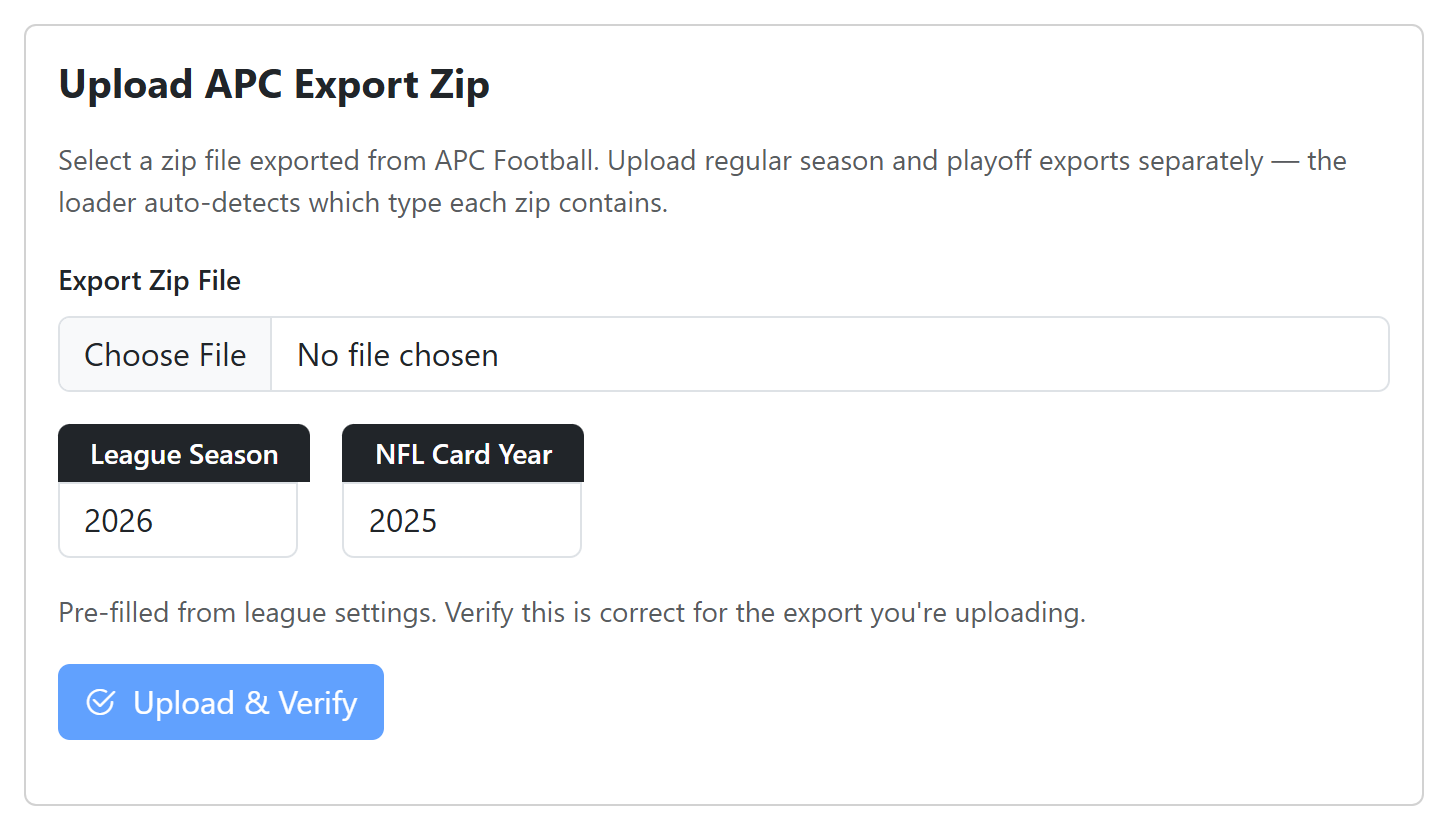
Under Verification Results, check Data Type says Regular Season or Playoffs. It is worked out from the file; change it if it is wrong. Check the Teams table, then choose Continue.
Under Import Options, tick what to load: Player Stats, Standings, Team Stats. Tick Compute Auto-Awards only at the end of the season.
Under Weekly recap, the box scores are always saved and the week's draft recap updated. Tick Write the recap stories with Claude (AI add-on) to have the stories written once all of a week's games are in.
Choose Extract & Preview. Check the counts, standings and leaders.
For a playoff file, check Playoff Rounds in This File: change a round if a group of games belongs to a different one. The round names come from Playoff Structure.
Choose Import to Database.
When it is done, each recap the file touched has Review & publish.
Send Playfile/Preview
- Under Upload the week's playfile, choose the playfile .zip.
- Tick Write the previews with Claude (AI add-on) if you want them.
- Choose Build preview, then Review & publish. The email to the league carries the playfile.
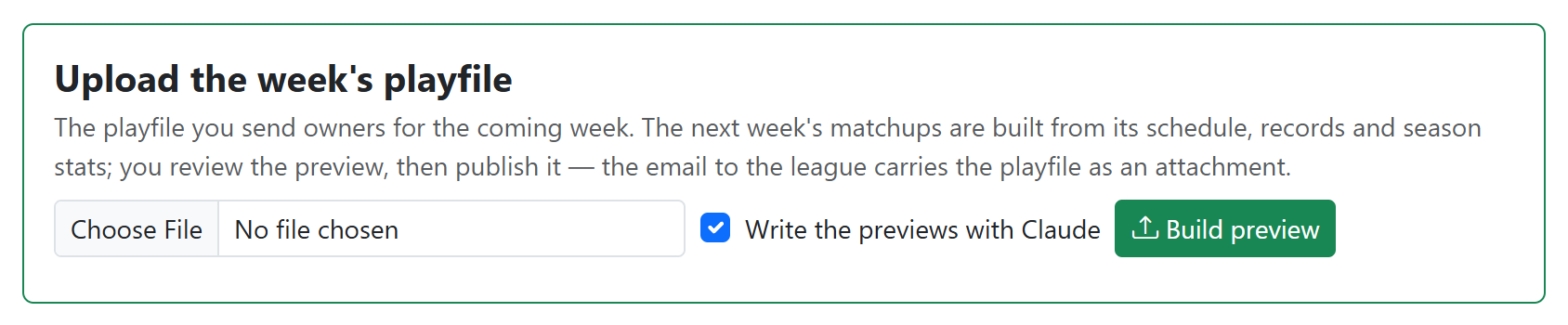
Recaps are listed on the Weekly Recaps tile.
APC Hockey Loader
On League Admin, choose APC Hockey Loader.
Under APC Hockey export (.zip), choose the export. It must have the league's HKPLAYER file in it.
Check both years: NHL card year (used to match players) and League season year (where everything is saved). After a season advance, set both back to the season you are loading.
Choose Upload & Inspect.
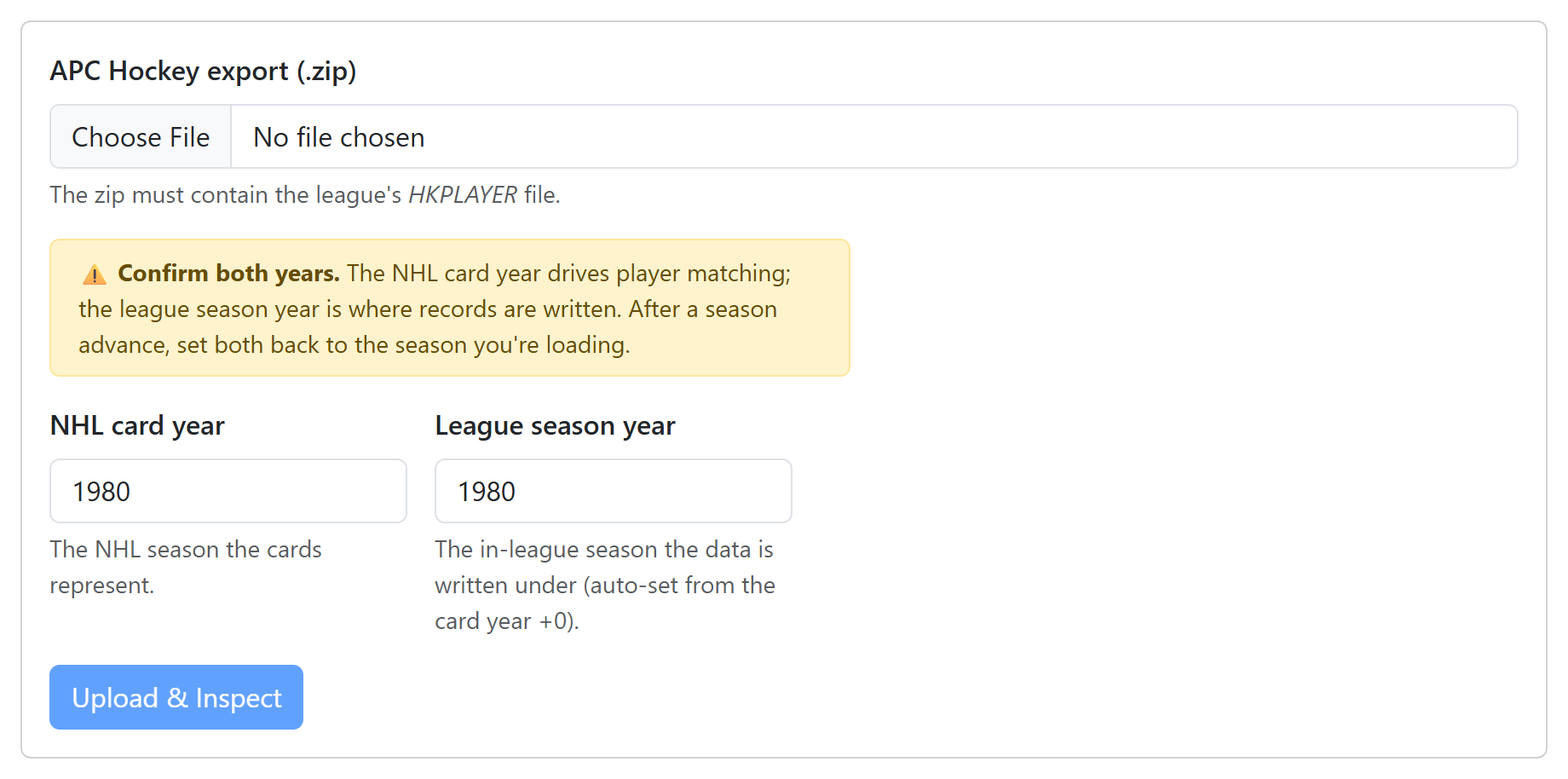
Check Cards found. If a Teams table appears, pick the league team for each code that did not match. Your picks are remembered.
Choose Continue to Import.
Under What is this file?, choose one:
- Load Ratings: player names, positions and APC ratings, once when the disk comes out.
- Load/Send Block Results: a results zip.
- Send Playfile/Preview: the playfile owners play the next block from.
Load/Send Block Results
Tick what to load:
- Sim Stats: player stats (playoff files are found by themselves).
- Standings: team records.
- Block Recap: saves the box scores of the games since the last upload and opens a draft recap. Check New games go into shows the right block (for a playoff file, the right round). Write the featured games' stories and Around the League with Claude needs the AI add-on.
- Under End of season: Draft Order (check Draft year to update) and Compute Auto-Awards. Auto-Awards needs Sim Stats and Standings loaded, in this upload or an earlier one.
Choose Import to Database. When it says Import complete., choose Review & publish on the recap.
Players the loader could not match are listed under Players without a matched ID. Type each player's ID and choose Save Player IDs.
Send Playfile/Preview
Check Block number. The block is the half-month holding the next unplayed games: the 1st to the 15th, or the 16th to the end of the month. Tick the Claude box if you have the AI add-on, then choose Build Preview and Review & publish. Nothing is emailed until you publish it.
Recaps and previews are listed on the Recaps & Previews tile.
The File Uploader on these loaders
Diamond Mind and Action PC leagues.
If your league has a File Uploader (League Admin, League Info, File Uploader), that owner gets a File Upload tile on the league dashboard. It opens your game's loader with only the results and playfile parts showing. Ratings, draft order, awards and player ID fixes stay with you. On Diamond Mind, Results, Recap & Preview is picked for them.
They do not get the review page. They choose Check & send, look at the recap or preview as the league will see it, and choose Send to league.
APBA GO leagues: the File Uploader cannot load APBA GO files. Their File Upload page says that the commissioner loads the league's APBA GO season export, and has nothing to upload.