Your Trade Block tells the other owners which of your players are available, what your team needs, and anything else you want to say. Other owners see it on the league's Trade Block report, and you can email it to the whole league when you save.
Put players on the block
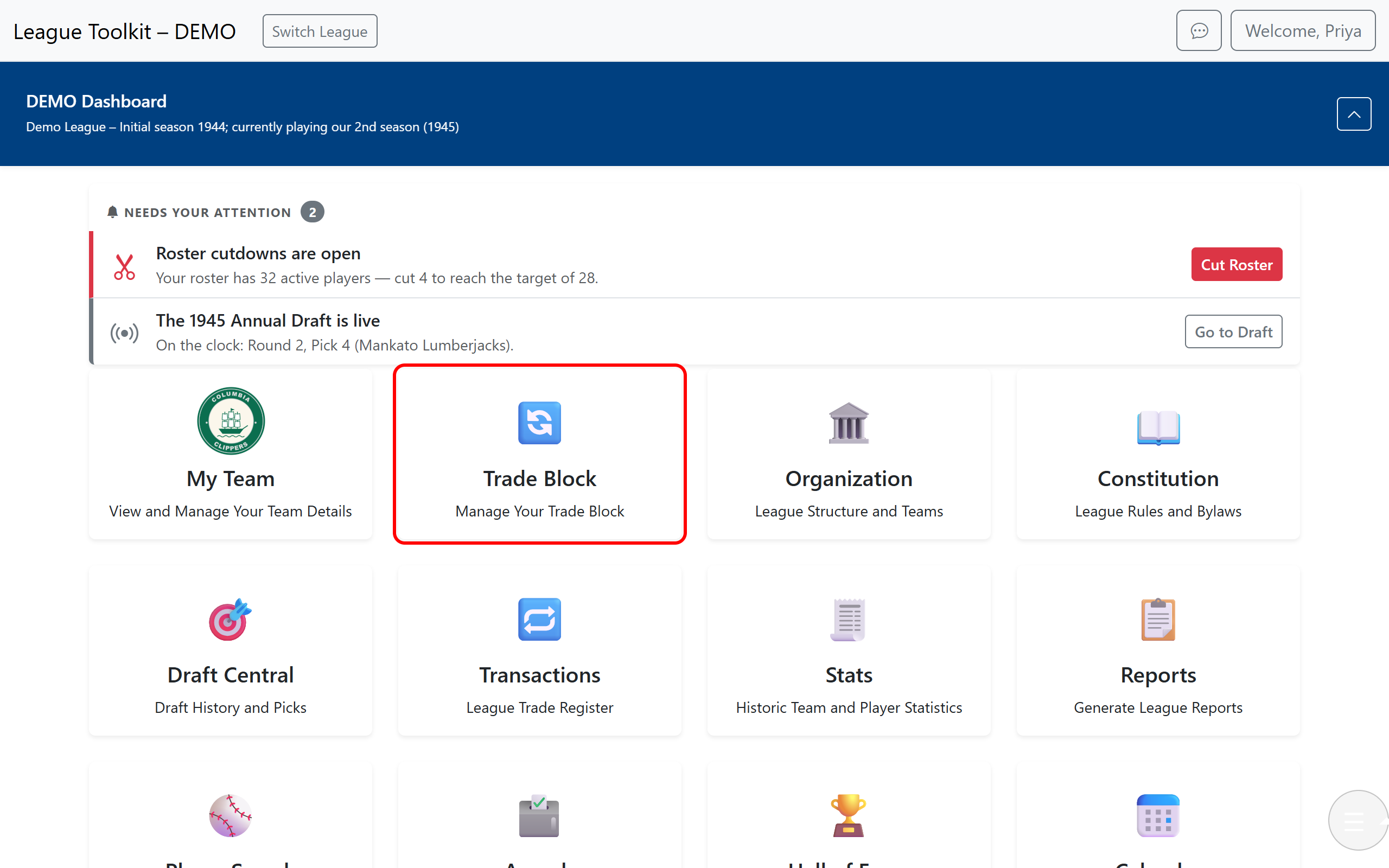
On your league's home page, choose the Trade Block tile.
Your team's Trade Block page opens. Under Roster, choose + Add to Block next to each player you will trade. It turns green and says ✓ On Block. You can also choose anywhere on the player's row.
To take a player off, choose ✓ On Block again. It goes back to + Add to Block.
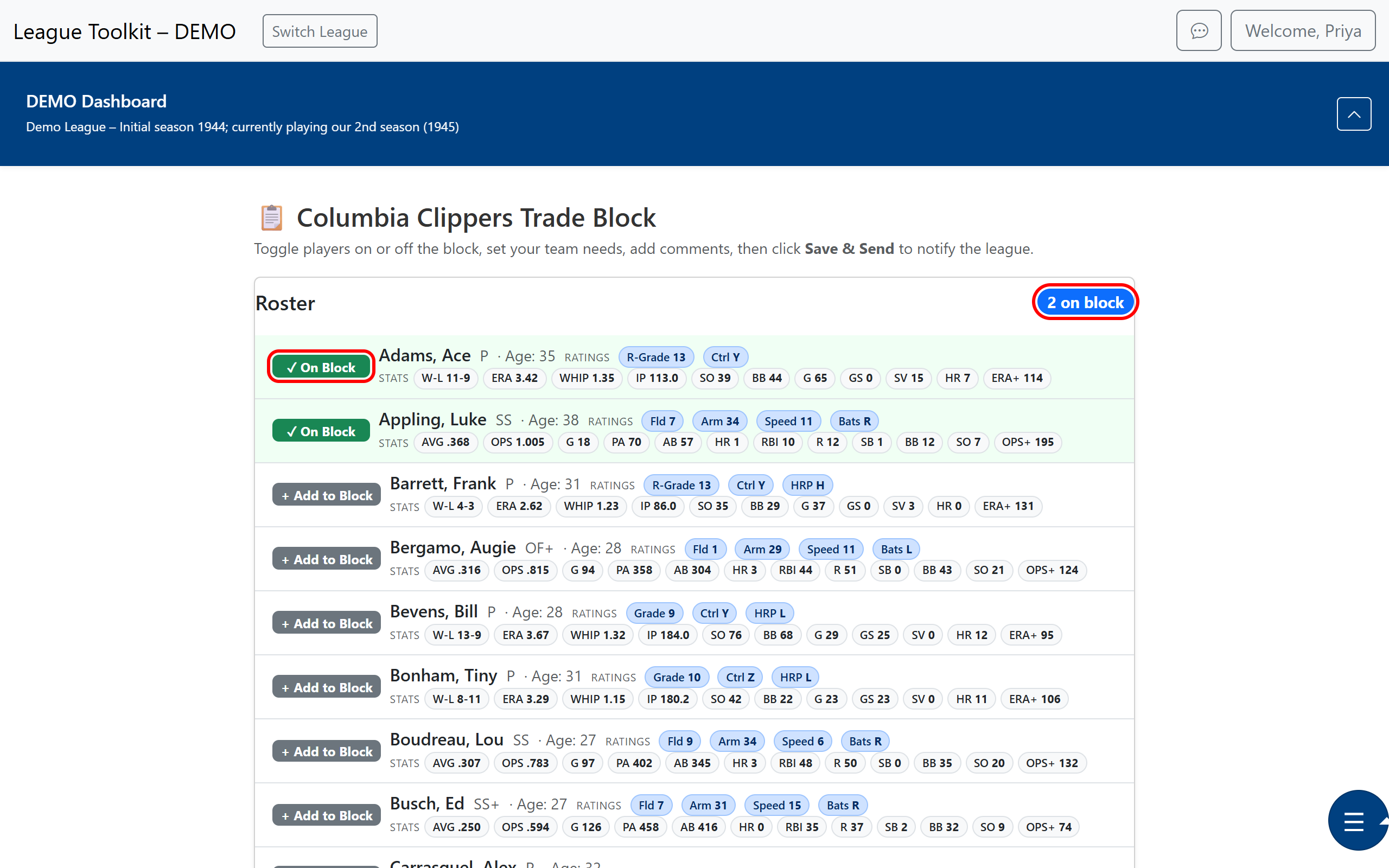
The number at the top right of the list, for example 2 on block, counts your choices. If your league has prospects, they are in a separate Prospects list below the roster and work the same way.
Choose a player's name to open his player card in a new tab. This does not change the block.
Say what you need, then save
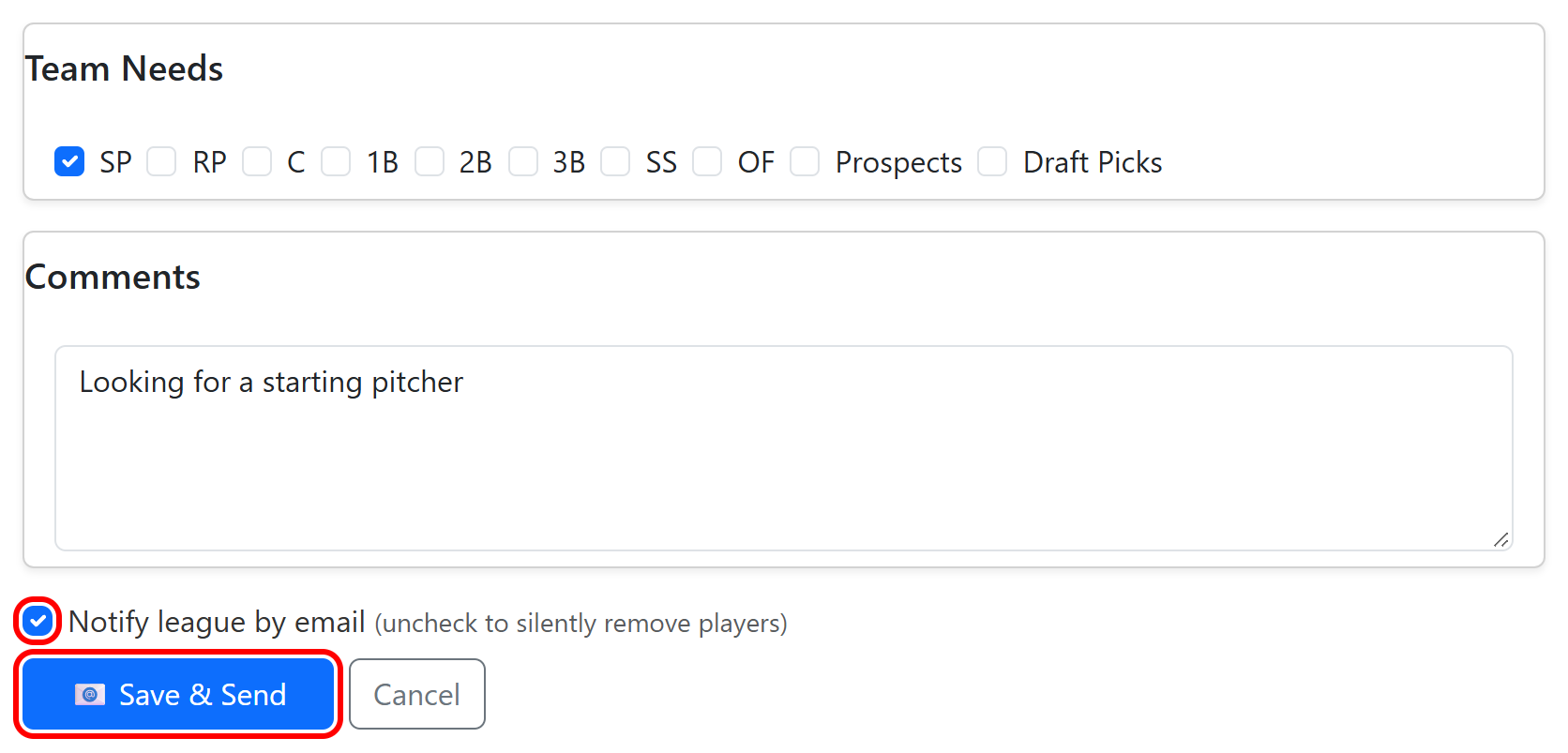
Under Team Needs, tick the positions you are looking for. In a baseball league the choices are SP, RP, C, 1B, 2B, 3B, SS, OF, Prospects and Draft Picks. Football and hockey leagues show their own positions.
Under Comments, type anything else, for example "Looking for a starting pitcher".
Decide whether to email the league:
- Leave Notify league by email ticked, and the button says Save & Send.
- Untick it, and the button says Save (no email). Use this to take players off quietly.
Choose Save & Send (or Save (no email)).
The page reloads with a message that says whether the email went out. It is green, or yellow when the email could not be sent:
- "Trade block saved and email sent to the league."
- "Trade block saved. (No email was sent.)" when you chose Save (no email).
- "Trade block saved, but no email was sent: this league has no group or League Toolkit email address set up." Ask your commissioner to add one.
- "Trade block saved, but the email to the league could not be sent. Please try again later."
Nothing is saved until you choose the save button. Cancel takes you back to the league home page without saving.
Notify league by email is ticked again every time you open the page. Untick it each time you want to save without an email.
Where other owners see it
- Reports: on the league home page, choose Reports, then Trade Block under Rosters. Each team with a block shows its Available Assets, Team Needs and Comments. When the owner has an email address, his name is an email link.
- Team pages: a small red square next to a player's name on a roster means he is on the trade block.
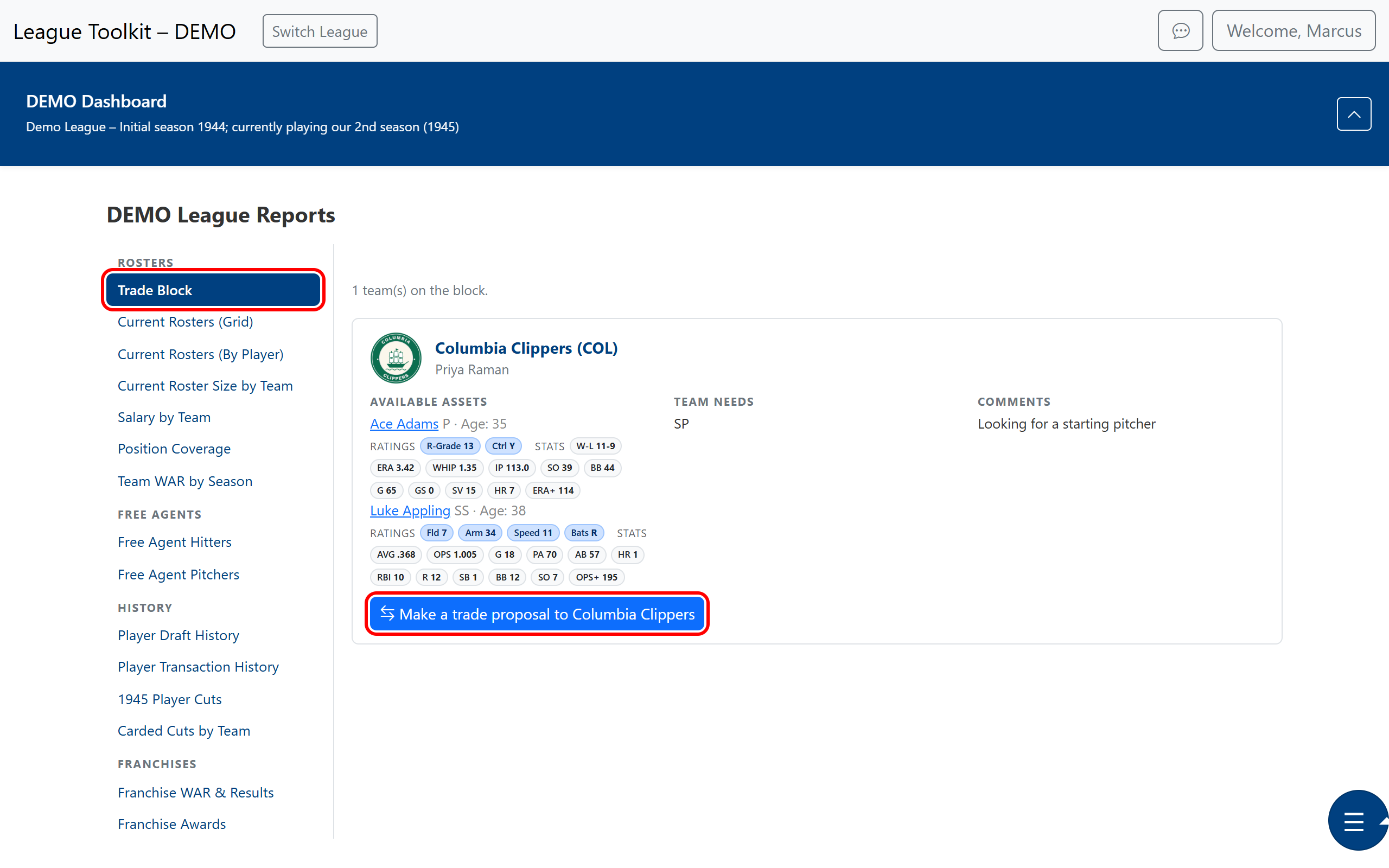
If your league uses trade proposals, each team on the report has a Make a trade proposal to button. See Propose a trade, and answer one.
Good to know
- When one of your players is traded, he comes off your trade block by himself.
- Saving replaces your whole block with what is on the page. To change it later, open the page again, make your changes and save.
- If you run two teams in the league, check the team name at the top of the page before you save.