League Toolkit has three ways to talk to other owners, and a calendar for the league's dates.
| Feature | What it is | Where to find it | League setting? |
|---|---|---|---|
| Messages | Private conversations between two owners. | The speech bubble in the top bar, Messages in the round menu button, or Messages under Welcome. | No, always there. |
| League Chat | A live group chat for everyone in the league. | League Chat in the round menu button, or the League Chat box on the Messages page. | Yes. Only when your commissioner turns it on. |
| Watch Rooms | A page to watch a live game stream and comment on it together. | Watch Rooms in the round menu button, or the Watch Rooms button in League Chat. | No, always there. |
| Calendar | The league's dates and deadlines. | The Calendar tile on the dashboard. | No, always there. |
Messages
Messages are private: only you and the other owner see them. Each conversation is with one owner.
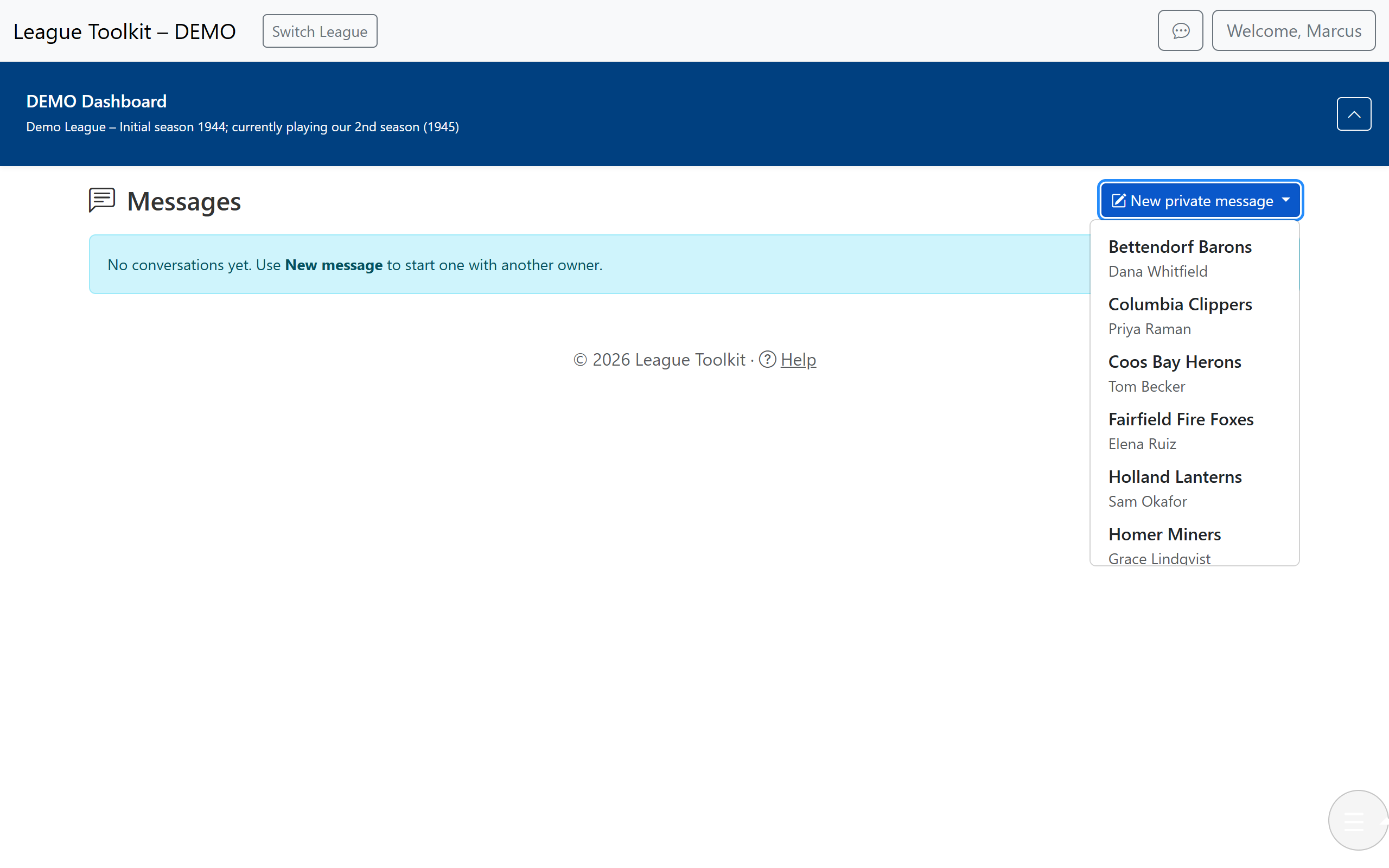
The Messages page
- New private message opens a list of the league's teams, with each owner's name. Choose one to start (or go back to) your conversation with that owner.
- Your conversations are listed below, with the other team, the start of the last message and the time. A red new label shows how many messages you have not read. Until you have one, the page says "No conversations yet. Use New private message to start one with another owner."
- When League Chat is on, a League Chat box at the top takes you there.
You can also start a conversation with Message on another owner's team page, or with the speech bubble icon next to an owner on the Organization page.
A conversation
Your messages are blue, on the right; the other owner's are white, on the left. Type in Write a message… and choose Send (or press Ctrl+Enter). New messages appear without reloading the page.
- Propose a trade at the top opens a trade proposal with that owner's team. See Propose a trade, and answer one.
- Inbox takes you back to the list.
The other owner gets an email every time you send a message.
Messages about a trade
Each trade proposal has its own conversation, in the Discuss this trade box on the proposal's page. Only the two teams in the trade see it. Open it with Message on the Trade Proposals tab of your team page. These conversations are not in your Messages list; a red number on the offer on the Trade Proposals tab shows unread ones.
The red number on the speech bubble
The speech bubble in the top bar shows how many private messages you have not read, plus unread League Chat messages in #general when League Chat is on. It does not count trade conversations.
League Chat
League Chat is one live conversation for every owner in the league. Your commissioner turns it on in the league's settings; until then it does not appear.
- Messages show each team's logo, short name and owner. Type in the box at the bottom and choose Send.
- To answer one message, point at it (or press and hold on a phone) and choose ↩ Reply.
- Mention a team by typing @ and its short name, for example @COL. A button at the top counts the replies to you; choose it to jump to the latest one.
- The Teams box on the right shows which teams are online now.
- Some leagues have more than one channel. Then a button at the top, such as #general, lets you switch channels.
League Chat sends no emails. You see new messages only in League Toolkit.
Watch Rooms
A Watch Room is a page where league members watch a live game that an owner streams to YouTube or Twitch, and comment on it as it happens. Any owner can open a room.
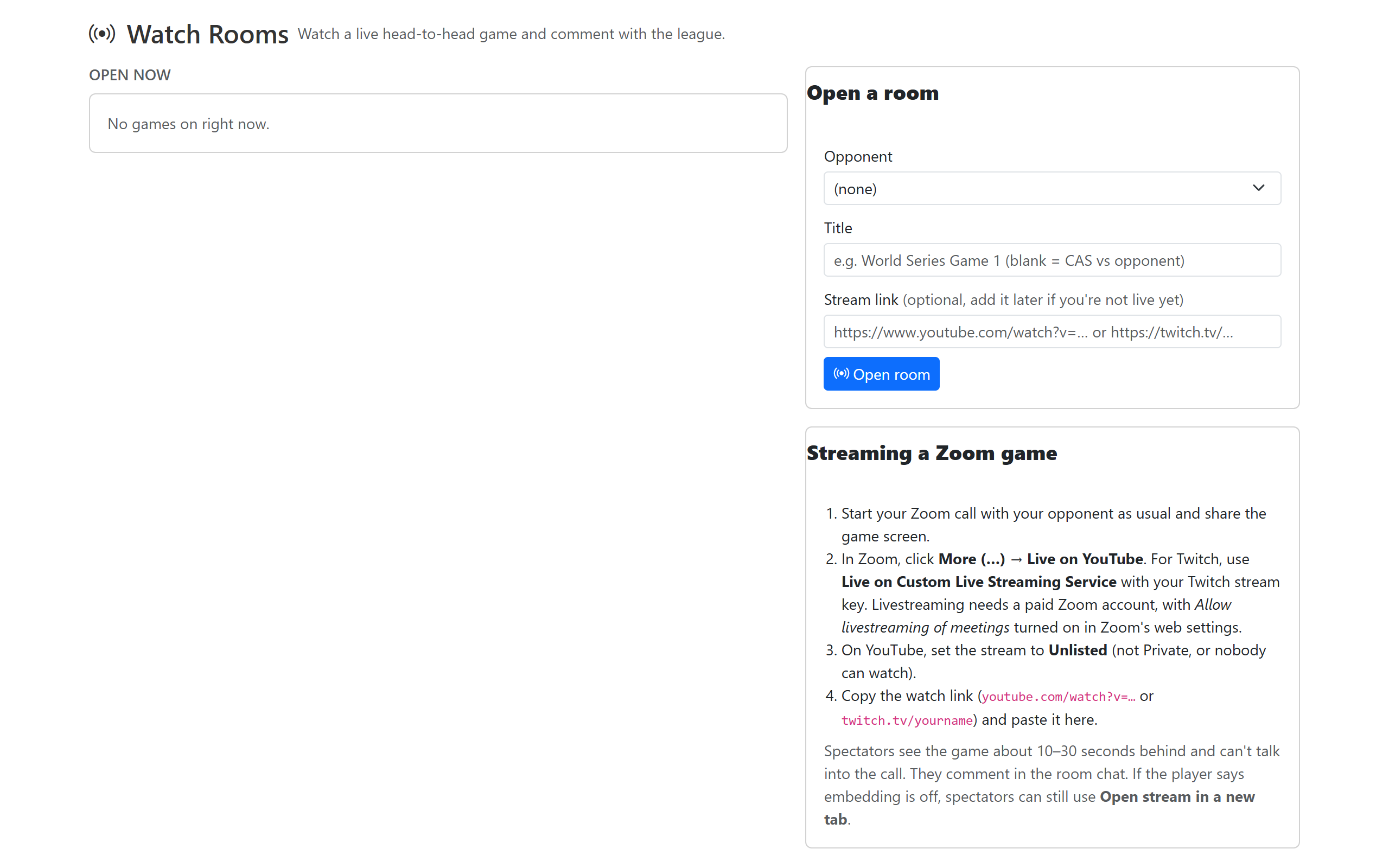
- Open now lists rooms that are open. ● LIVE means the game is streaming; Waiting means the room is open but the stream has not started. Recently ended lists finished rooms.
- Choose a room to open it. The game plays at the top; the Comments box is below. Type in Comment… and send.
- If the video does not play inside the page, choose Open stream in a new tab.
- When a room ends, the comment box goes away and the room shows "This room has ended. The comments stay readable." You can still read everything that was said, but nobody can add a comment.
To host a game, fill in Open a room: choose your Opponent, give it a Title if you like, paste your Stream link (or add it later), and choose Open room. The Streaming a Zoom game box explains how to stream a Zoom game to YouTube or Twitch. When League Chat is on, a link to your room is posted there.
Watch Rooms do not send emails.
The Calendar
Choose the Calendar tile on the dashboard to open the League Calendar.
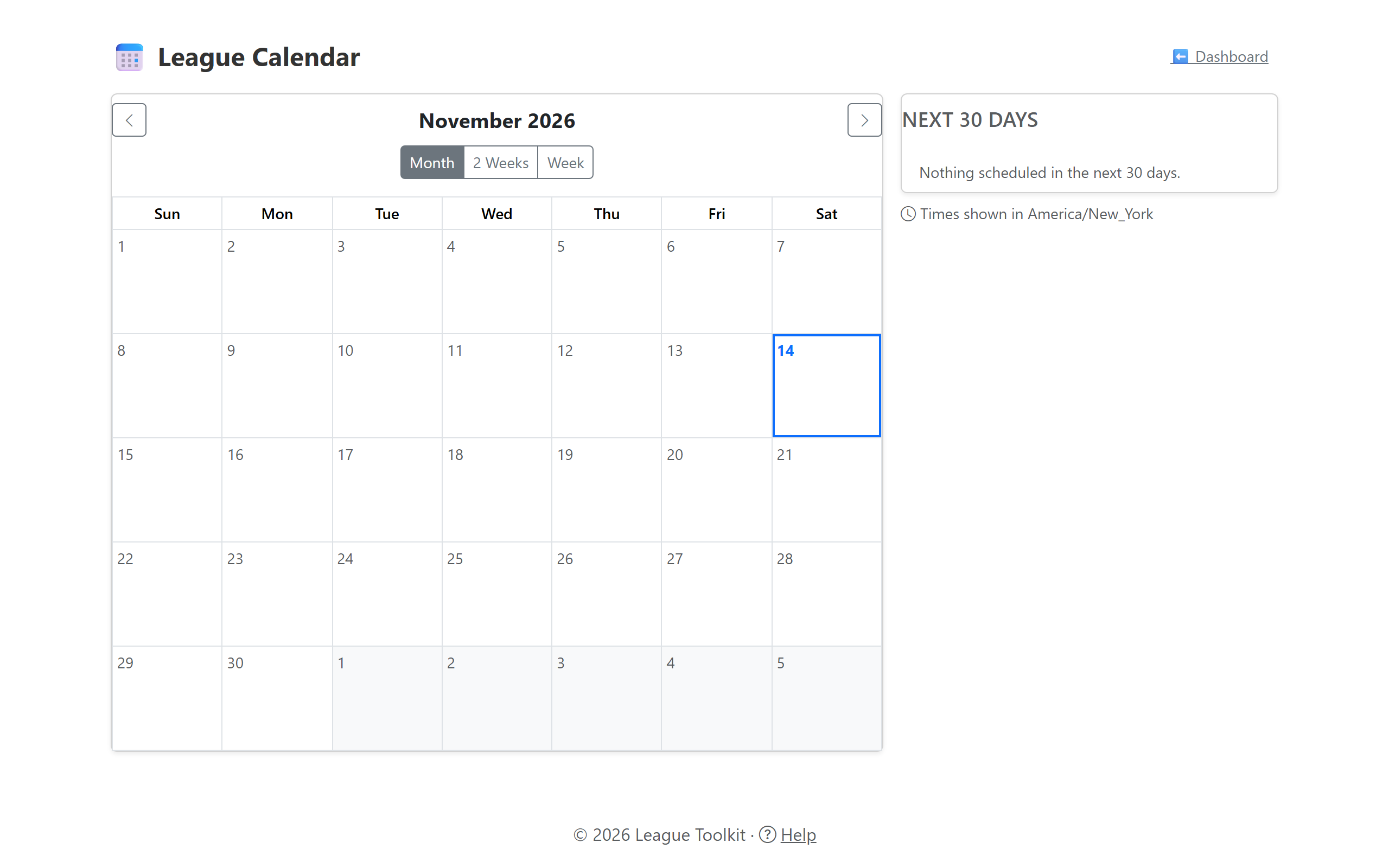
- Month, 2 Weeks and Week change the view. The arrows move back and forward. Today is outlined in blue.
- Next 30 Days on the right lists what is coming up, with the time zone underneath.
- Subscribe appears when your commissioner has set up a calendar link. It gives you the league calendar as a file your own calendar program can use.
- ⬅ Dashboard takes you back to the dashboard.
What you can see on the calendar:
- dates your commissioner adds, such as draft, cutdown and trade deadline dates, meetings and the season;
- when awards voting and Hall of Fame voting open and close;
- when a poll closes;
- when the season starts and ends;
- in leagues that play in blocks of games, each block's dates and when its results are due, with a banner at the top of the page for the current block.
Only commissioners can add or change calendar events.
The dashboard's Needs your attention list also shows events in the next week, with a View Calendar or Details button. See Find your way around.