Start here if you are new to League Toolkit. This page shows you how to sign in, open your league, and find the main parts of the site. You do not need to learn everything at once: the Needs your attention list on your league's dashboard tells you what to do next.
1. Sign in
Go to the Login page.
In User ID or Email, type your user ID or the email address on your account. Either one works.
Type your Password.
Tick Remember Me if this is your own computer or phone. You then stay signed in for longer.
Wait for the verification box to finish, then choose Login.
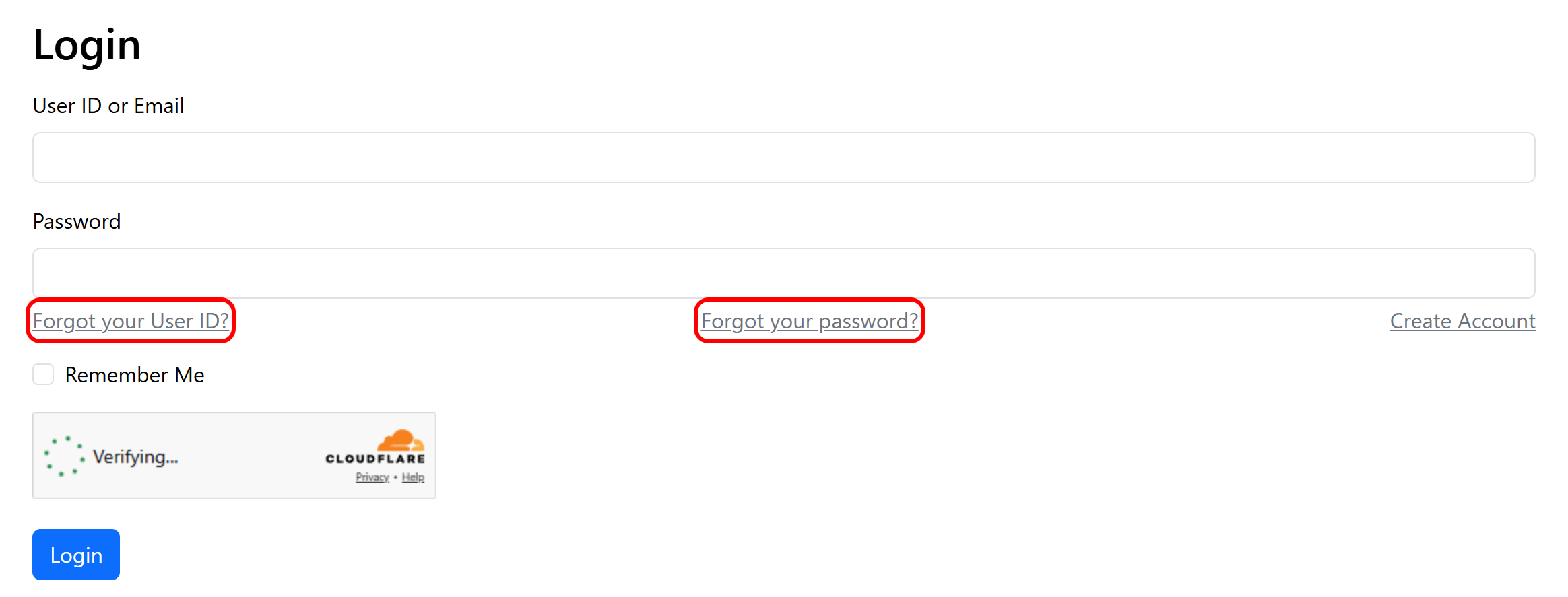
If you cannot sign in:
- Forgot your User ID? Type the email address on your account and choose Email My User ID. Your user ID is sent to that address.
- Forgot your password? Type your user ID or your email address and choose Send Reset Email. You get an email with a link to choose a new password.
2. Open your league
After you sign in, you see a page that starts with Welcome, followed by your name. It lists every team you own, one row per league.
- In the League column, choose your league's short name (for example DEMO). Your league's dashboard opens.
- To go straight to your team instead, choose your team's short name in the Team Init column.
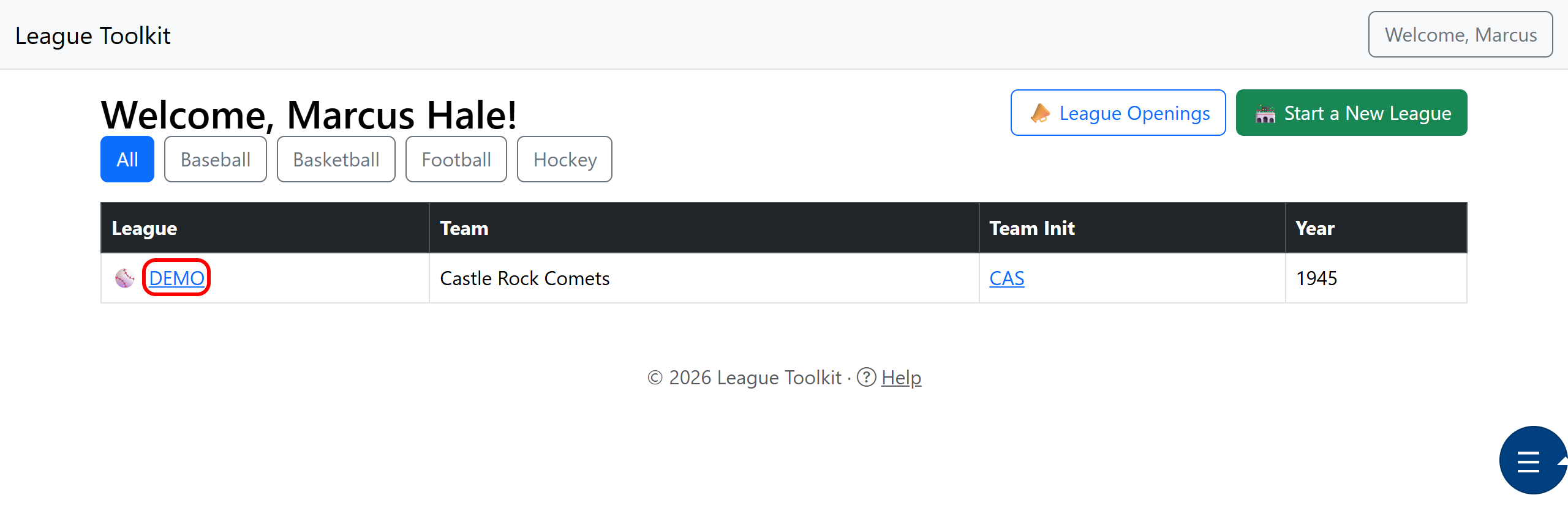
If you are in several leagues, the All, Baseball, Basketball, Football and Hockey buttons above the list show only the leagues of one sport.
3. The top bar
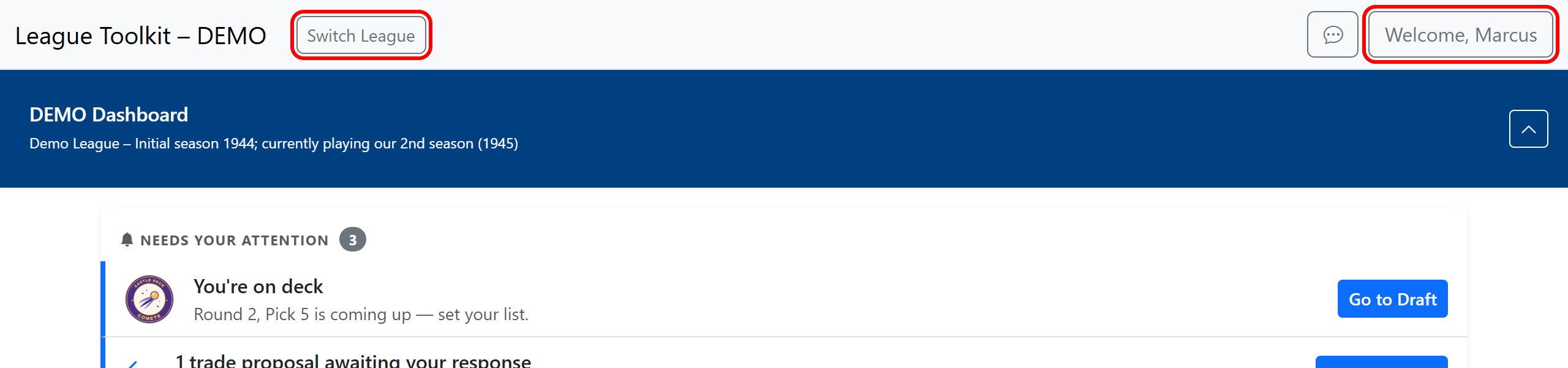
Once a league is open, the bar at the top of every page shows the league's short name and these buttons:
- Switch League takes you back to the list of your leagues, so you can open another one.
- The speech bubble opens your league Messages. A red number on it shows how many messages you have not read.
- Welcome, followed by your first name, opens your account options (see step 7).
4. Needs your attention
At the top of the dashboard, the Needs your attention list shows what is waiting for you right now. The most urgent items come first. A red edge means act now, blue means something to do, and grey is for your information. Each item has a button on the right that takes you straight to the right page.
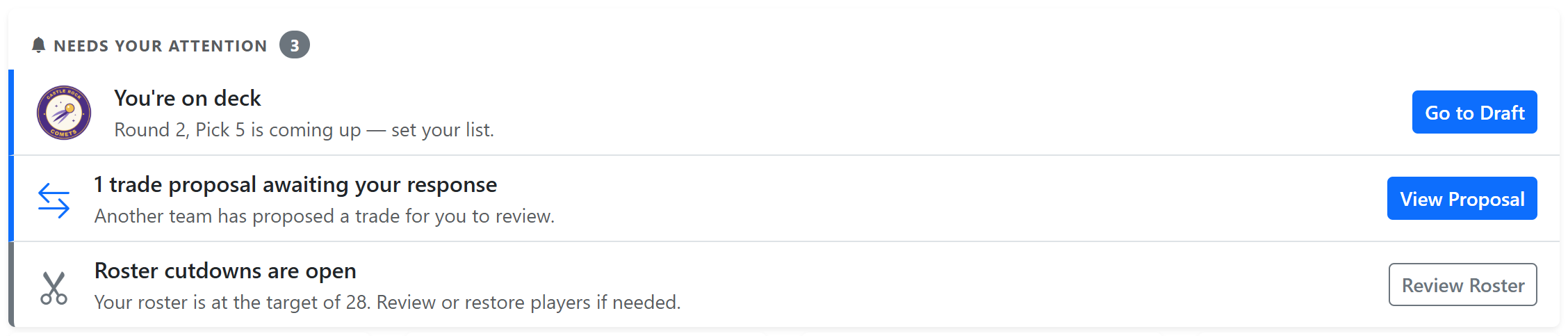
Items you may see, and their buttons:
| Item | Button | What it does |
|---|---|---|
| You're on the clock! | Make Pick | Opens the draft so you can make your pick. See Make a draft pick. |
| You're on deck, or the draft is live | Go to Draft | Opens the draft page. |
| A trade proposal awaiting your response | View Proposal | Opens the Trade Proposals tab on your team page. |
| Roster cutdowns are open | Cut Roster or Review Roster | Opens your cutdown page. See Cut down your roster. |
| A league poll needs your vote | Vote Now (or View Polls when there are several) | Opens the poll. See Vote in a poll, or start one. |
| Awards voting or Hall of Fame voting is open | Vote Now or Review Ballot | Opens your ballot. |
| RFA decisions due or RFA auction bidding is open | Submit Decisions or View Auction | Opens the restricted free agent pages. Only in leagues that run an RFA auction. |
| Set your protect list for the (your league's draft name) | Set Protect List | Opens your protect list. Only in leagues that run a cutdown draft, where each team protects part of its roster before the annual draft. Your league may call it something else, such as "28 Man Draft". |
| An event in the next week | View Calendar or Details | Opens the league calendar or the event. |
| Unread messages | Open Messages | Opens your league messages. |
When nothing needs you, the list does not appear at all.
5. The dashboard tiles
Below the list are the tiles. Choose a tile to open that part of the site.
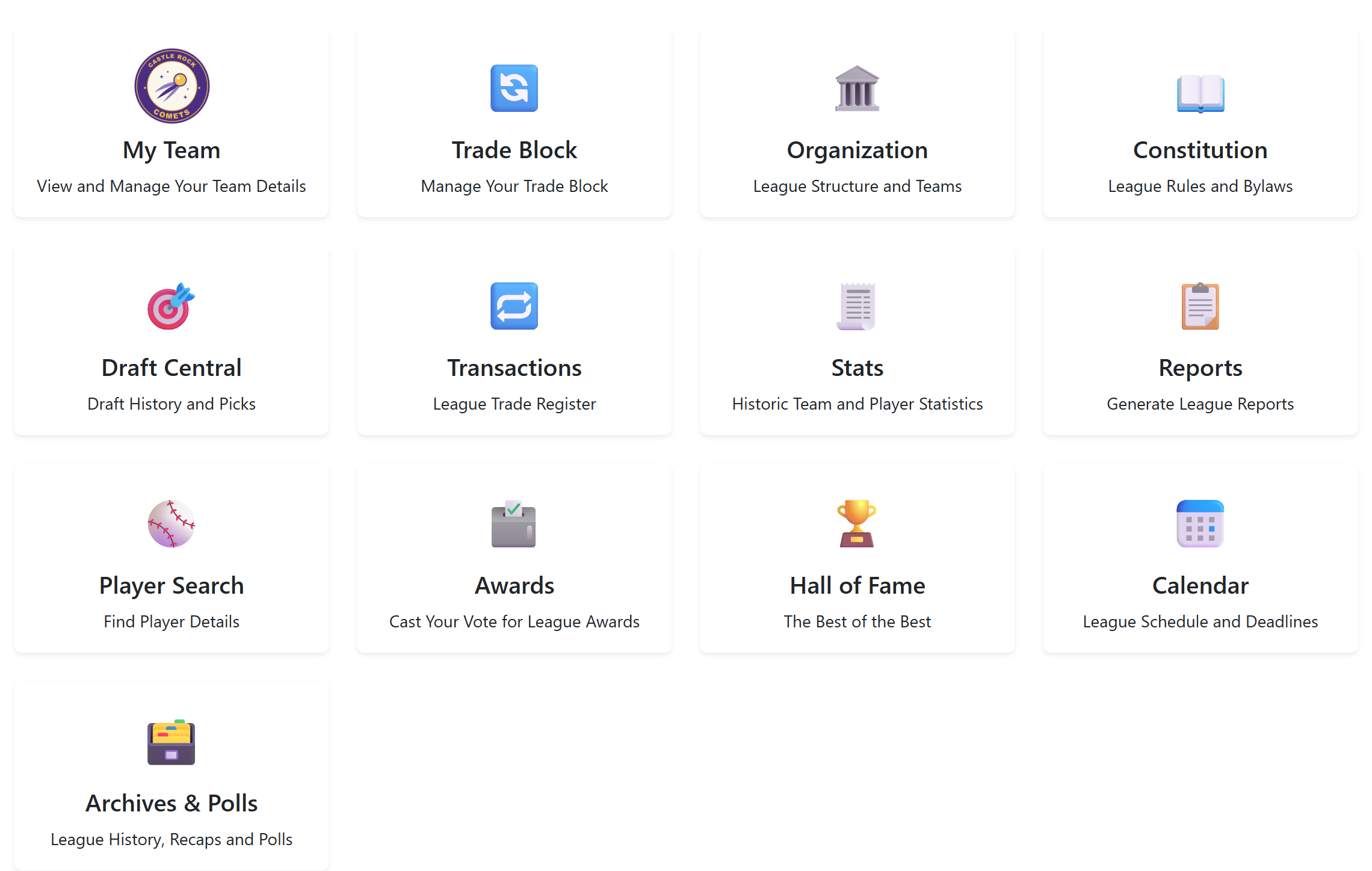
- My Team: your roster and team details. It shows your team's logo.
- Trade Block: the players you are willing to trade and what your team needs. See Post your trade block.
- Free Agents: sign and release free agents. Only in leagues where owners can pick up free agents.
- Organization: how the league is set up, and its teams.
- Constitution: the league rules.
- Draft Central: the league's drafts, past and present.
- Transactions: the league's record of trades and other moves.
- Stats: team and player statistics, this season and past seasons.
- Reports: league reports.
- Player Search: look up any player.
- Awards: vote for league awards while voting is open, and see past award results.
- Hall of Fame: the league's Hall of Fame.
- Calendar: the league schedule and deadlines.
- Archives & Polls: league history and recaps, and the Polls tab.
- Schedule: games, results and box scores. Only in leagues that enter game results in League Toolkit.
Commissioners also see a League Admin tile. If you do not own a team in the league you are looking at, My Team and Trade Block are not shown.
6. The round menu button
On most pages there is a round button with three lines (☰) at the bottom right. Choose it to open a menu of the main pages, so you do not have to go back to the dashboard first.
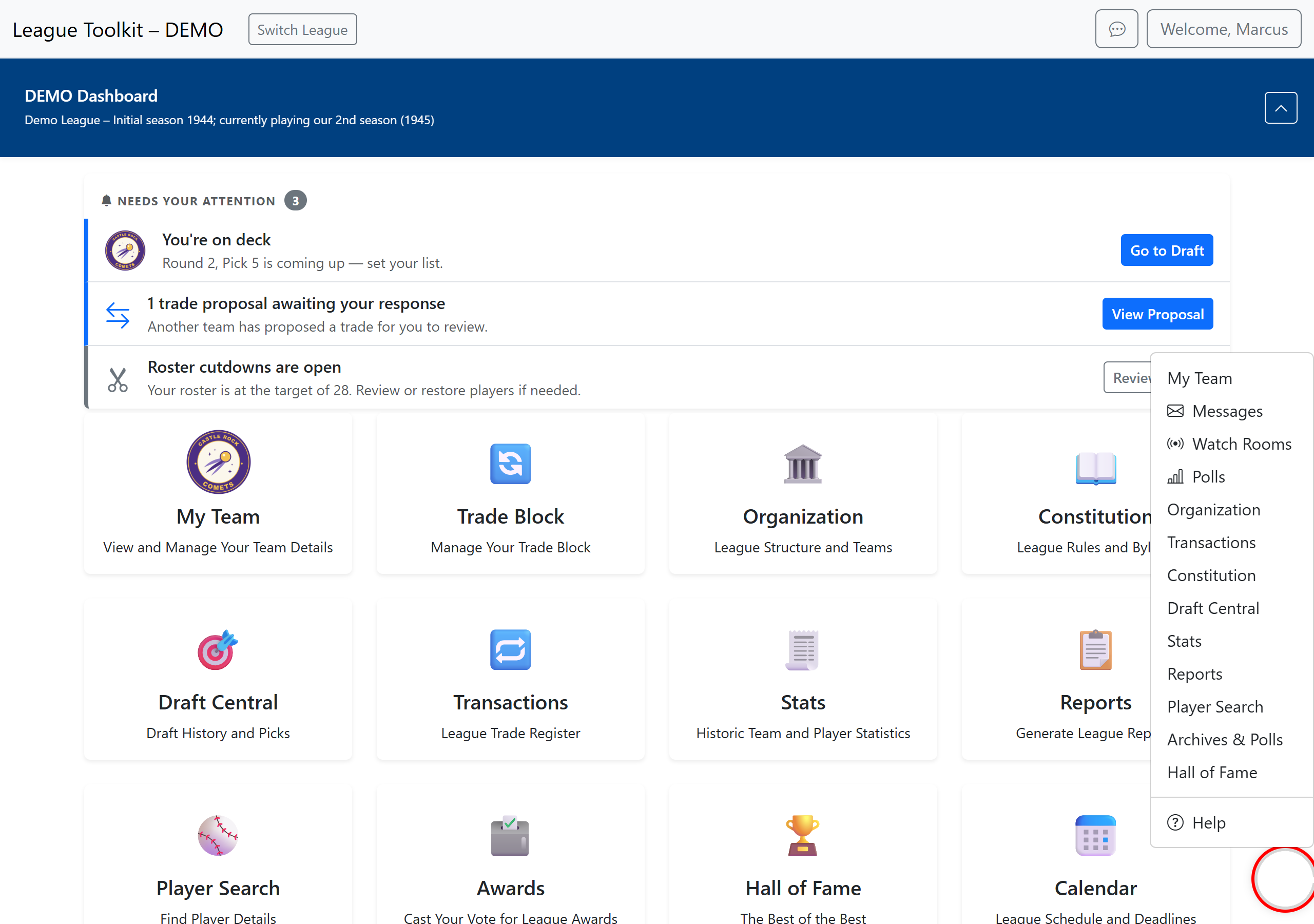
The menu has My Team, Messages, Watch Rooms, Organization, Transactions, Constitution, Draft Central, Stats, Reports, Player Search, Archives & Polls, Hall of Fame and Help. Some leagues also show League Chat (when the league has group chat turned on) and Polls (when the league has polls turned on). The button takes the league's colour, so it can look different in each league.
7. The Welcome button
Choose Welcome (with your first name) at the top right. A panel called Account Options opens on the right:
- Messages: your messages in this league.
- My leagues list: open links in new tab: on the list of your leagues, the league and team links then open in a new browser tab. The button then reads My leagues list: open links in same tab; choose it again to switch back.
- Help: the help pages.
- Change Email: change the email address on your account.
- Change Password: choose a new password.
- Logout: sign out.
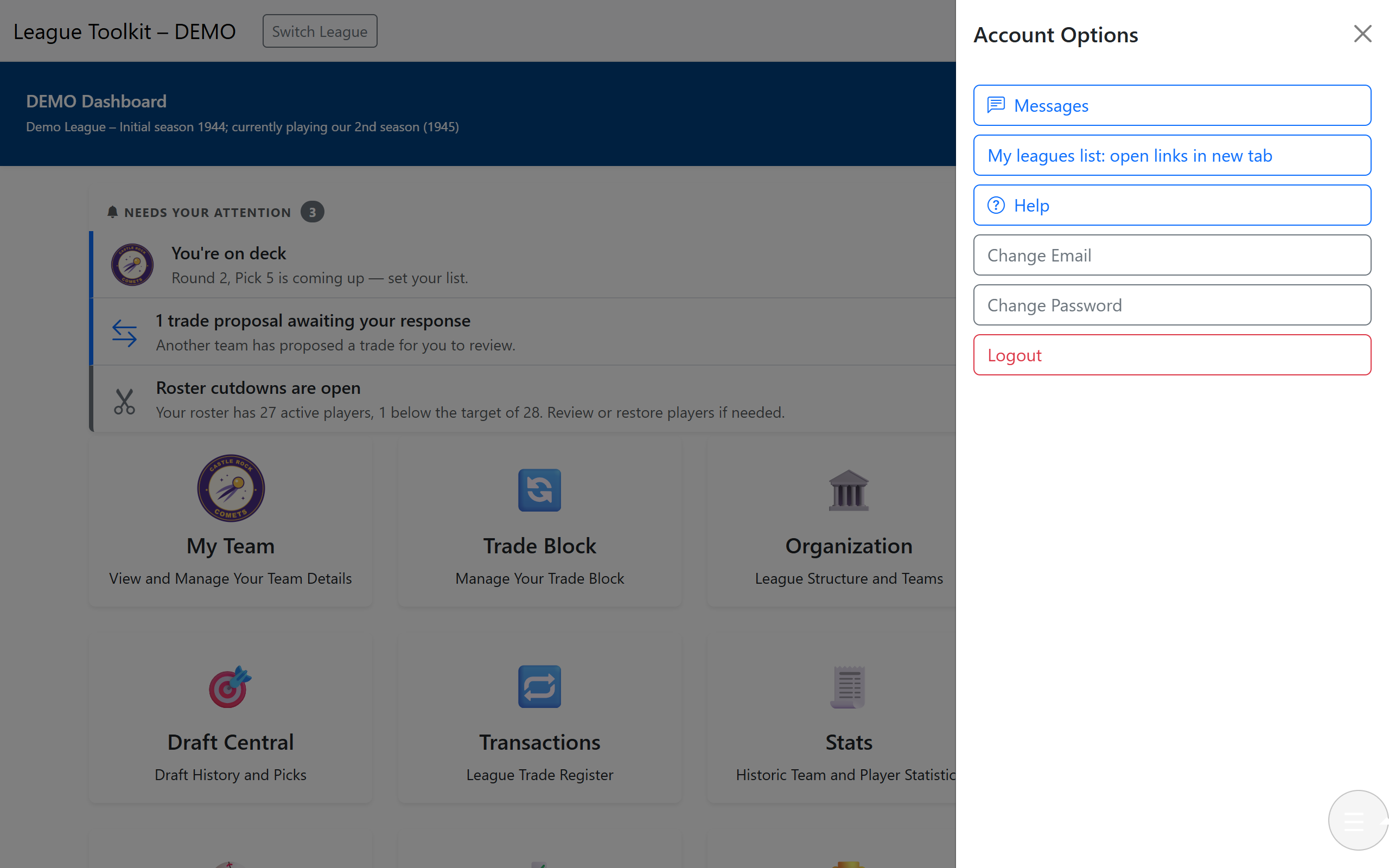
Choose the X at the top of the panel to close it.
Switch to another league
If you are in more than one league, choose Switch League in the top bar. You go back to the list of your leagues; choose another league's short name to open it.