Team Info is where you edit one team at a time: its name, logo, colours and owner. It is also where you hand a team to a new owner, or add a brand-new team. Open it from the Team Info tile on League Admin.
Replacing an owner at the end of a season is phase 5 of Start a new season, end to end.
Choosing a team
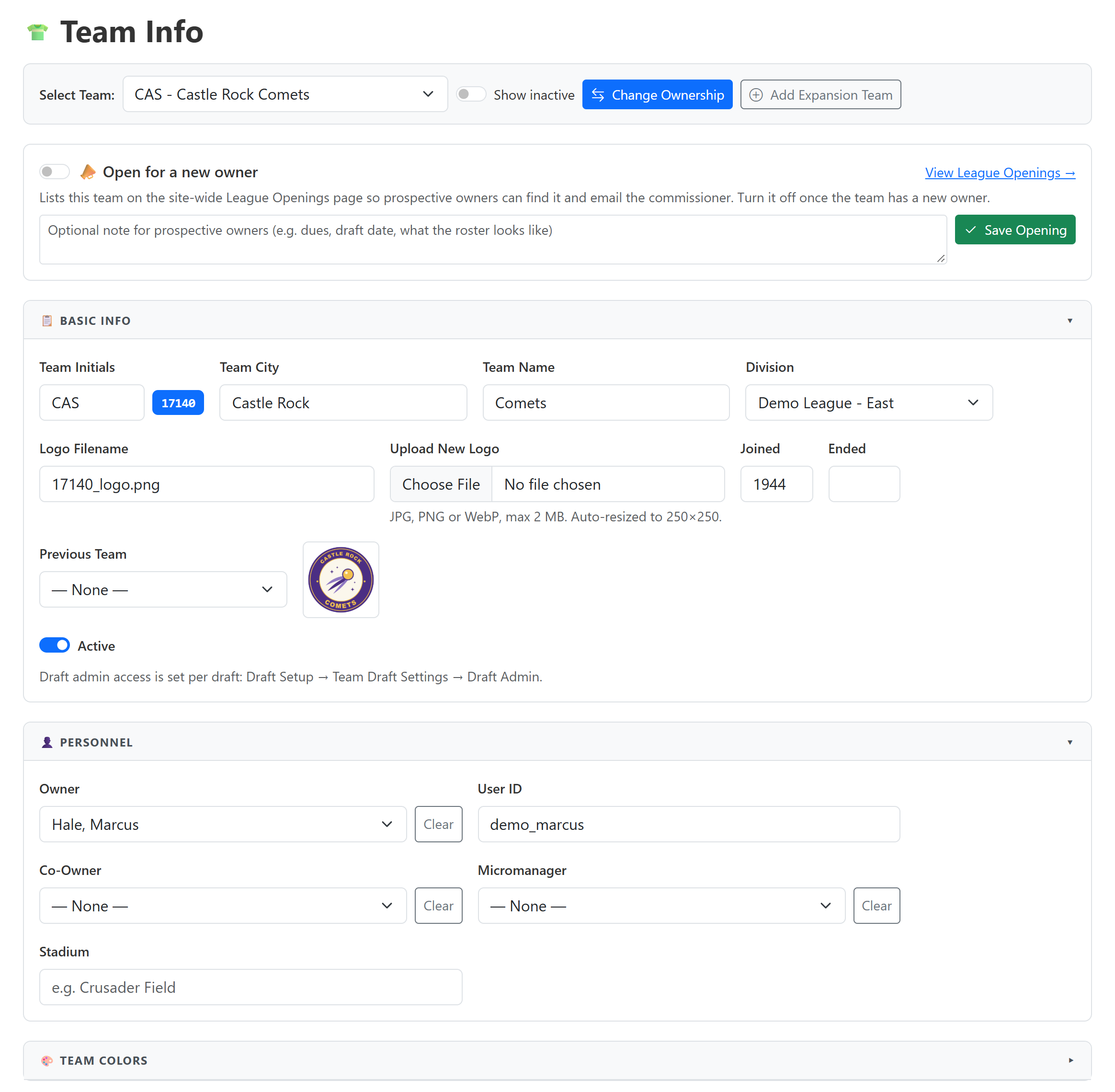
Pick the team under Select Team. The page reloads with that team's details.
Teams that are no longer in the league (inactive teams, such as old franchises) are hidden from the list. Switch on Show inactive to see them too.
The bar also holds the Change Ownership and Add Expansion Team buttons. Both are explained below.
Open for a new owner
This box appears for active teams. It lists the team on the site-wide League Openings page, so people looking for a league can find it and email you.
- Switch on Open for a new owner.
- If you like, write a note for people thinking of taking the team, such as dues, the draft date, or what the roster looks like.
- Choose Save Opening.
The box then shows Listed since and the date. View League Openings opens the public list. When the team has its new owner, switch it off and choose Save Opening again.
Save Opening saves only this box. It does not save the rest of the page, and Save Changes does not save this box.
Basic Info
| Field | What it does |
|---|---|
| Team Initials | The team's short code, used across the site. The blue badge next to it is the team's ID number. |
| APBA GO Code | APBA GO leagues only. The code for this team in your APBA GO exports, so imports find the right team. |
| Team City and Team Name | The team's full name, for example Castle Rock Comets. |
| Division | The division the team plays in. Divisions are set up with the Leagues & Divisions tile. |
| Logo Filename | The name of the team's logo file. Leave it alone if you upload a logo instead. |
| Upload New Logo | Choose a JPG, PNG or WebP file (2 MB at most). It is resized to 250×250 and replaces the logo when you save. It wins over Logo Filename. |
| Joined and Ended | The first and last seasons of this team. Ended is blank for a team still in the league. |
| Previous Team | The team this one replaced, for franchise history. Change Ownership fills it in for you; the Franchise History tile manages whole chains. |
| Active | The team is in the league now. Inactive teams are former teams, kept for history. |
Under the Active switch, a line reads "Draft admin access is set per draft: Draft Setup → Team Draft Settings → Draft Admin." That is where you let an owner run a draft: in the Draft Admin column of Team Draft Settings on Draft Setup, separately for each draft. See Draft Setup, Draft Order Rules, Draft Slots and Draft Picks.
Personnel
| Field | What it does |
|---|---|
| Owner | The person who runs the team. Clear leaves the team without an owner. |
| User ID | The owner's login username. Choosing a different Owner fills it in for you. |
| Co-Owner | A second person who shares the team. |
| Micromanager | The micromanager the team uses. In APBA and Diamond Mind leagues it shows on the Organization page and the team banner, with a download link when there is a file for it. |
| Stadium | The team's home park. In Action PC leagues it shows on the Organization page. |
Editing User ID changes that owner's login username, and they must use the new one to sign in. Only change it if the owner asked you to.
Team Colors
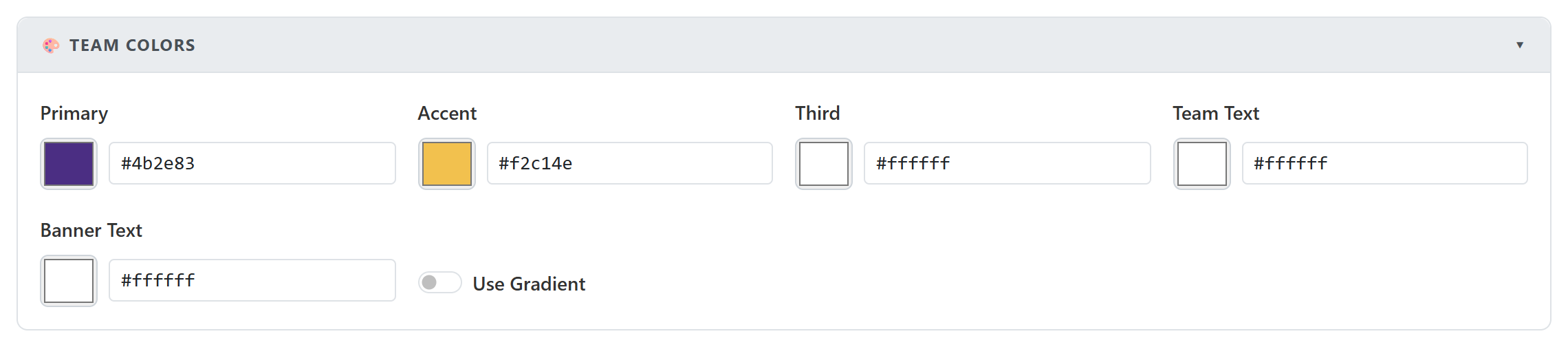
The colours style the banner at the top of the team's page. Choose a colour square to pick a colour, or type its code (such as #4b2e83) in the box beside it.
- Third: the banner's background colour.
- Banner Text: the colour of the writing on the banner. If it would be hard to read on the Third colour, League Toolkit uses black or white instead.
- Primary: the border around the team logo and the colour of the trophy icons on the banner.
- Accent: used with Use Gradient.
- Use Gradient: the banner fades from the Third colour to the Accent colour instead of being one flat colour.
- Team Text: saved with the other colours.
Choose Save Changes at the bottom of the page to save Basic Info, Personnel and Team Colors together.
Change Ownership
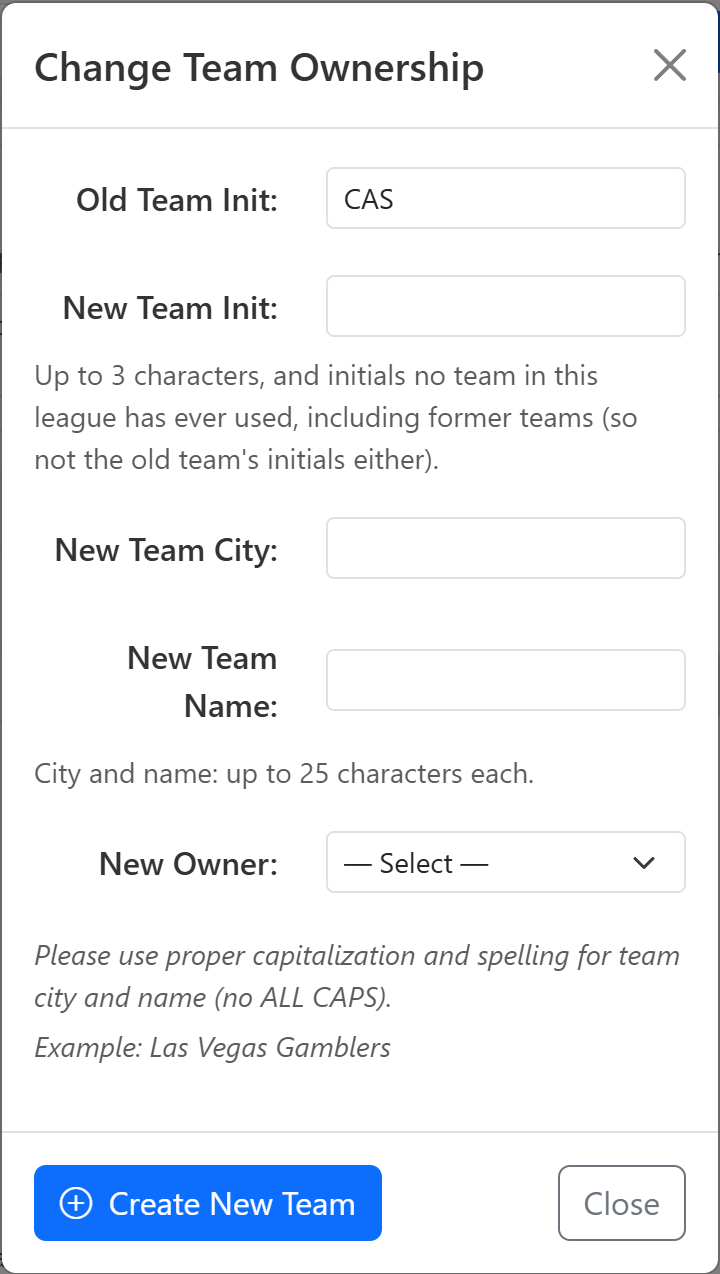
Use Change Ownership when a new owner takes over a team and gives it a new identity. Pick the team under Select Team first, then choose Change Ownership. Fill in New Team Init, New Team City, New Team Name and New Owner (all four are needed), choose Create New Team, and confirm.
The box gives the limits under the fields:
- New Team Init: up to 3 characters, and initials no team in this league has ever used, including former teams. That rules out the old team's own initials too.
- New Team City and New Team Name: up to 25 characters each.
A value that is too long is refused with a message, for example "Team city can be at most 25 characters (yours is 27).", and nothing is changed.
What it really does:
- Creates a new team with the new initials, city, name and owner, in the same division. Its first season is the current league year.
- Retires the old team: it becomes inactive, with this season as its last.
- Moves the old team's roster and prospects for the current season to the new team.
- Moves its draft picks, both its own and any it traded for, in this season's draft and every later draft, along with its draft settings.
- Relabels any picks it already made in a draft that is still going.
- Links the old and new teams in franchise history, so the team page shows the full history.
- Adds a league history note ("... takes over the ... and renames the franchise ...") and sends a welcome email to the league's Group Email.
Things to know:
- The new team starts with no logo, colours, stadium, co-owner or micromanager. Set them on Team Info afterwards.
- Earlier seasons stay with the old team, which you can still see with Show inactive.
If the new owner keeps the team's name and initials, you do not need Change Ownership. Choose them under Owner in Personnel and choose Save Changes. Change Ownership always needs new initials.
Add Expansion Team
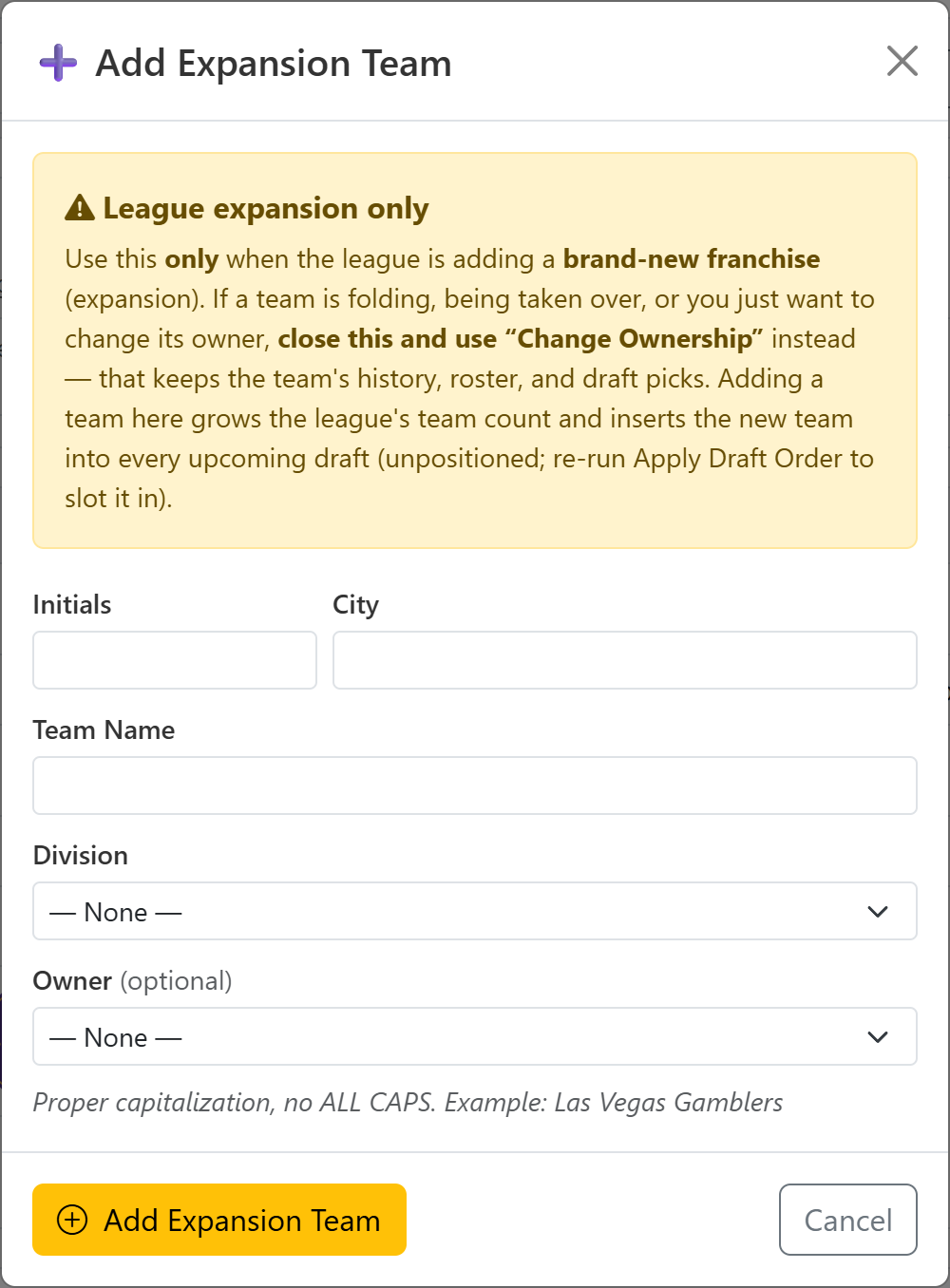
Use Add Expansion Team only when the league is growing by a brand-new team. Fill in Initials (up to 3 characters), City (up to 25), Team Name (up to 35) and Division, and the Owner if you have one, then choose Add Expansion Team. A value that is too long is refused with a message, and nothing is added.
What it really does:
- Creates a new, active team with no players, no history and no logo.
- Adds one to Teams on League Info.
- Adds the team to every regular draft that has not started yet, with one pick per round. Those picks have no place in the order yet.
After adding a team, set the order again: choose Apply Order to Current Draft on Draft Order Rules, or place the team on Draft Slots (possible only before the draft's first pick).
Do not use Add Expansion Team when an owner leaves. It does not retire the old team, so the league ends up with one team too many. Use Change Ownership, or change the Owner, instead.
The initials must not be used by any current team. Division must be chosen; the box starts on None.