Every team in your league has a team page. Open yours with the My Team tile on the dashboard or My Team in the round menu button. Open another team's page by choosing its name anywhere in the site, or from the team name at the top of any team page (see below).
The page has three parts: the banner at the top, a row of buttons, and the tabs. Tabs load one at a time when you choose them, so a tab can show Loading… for a few seconds.
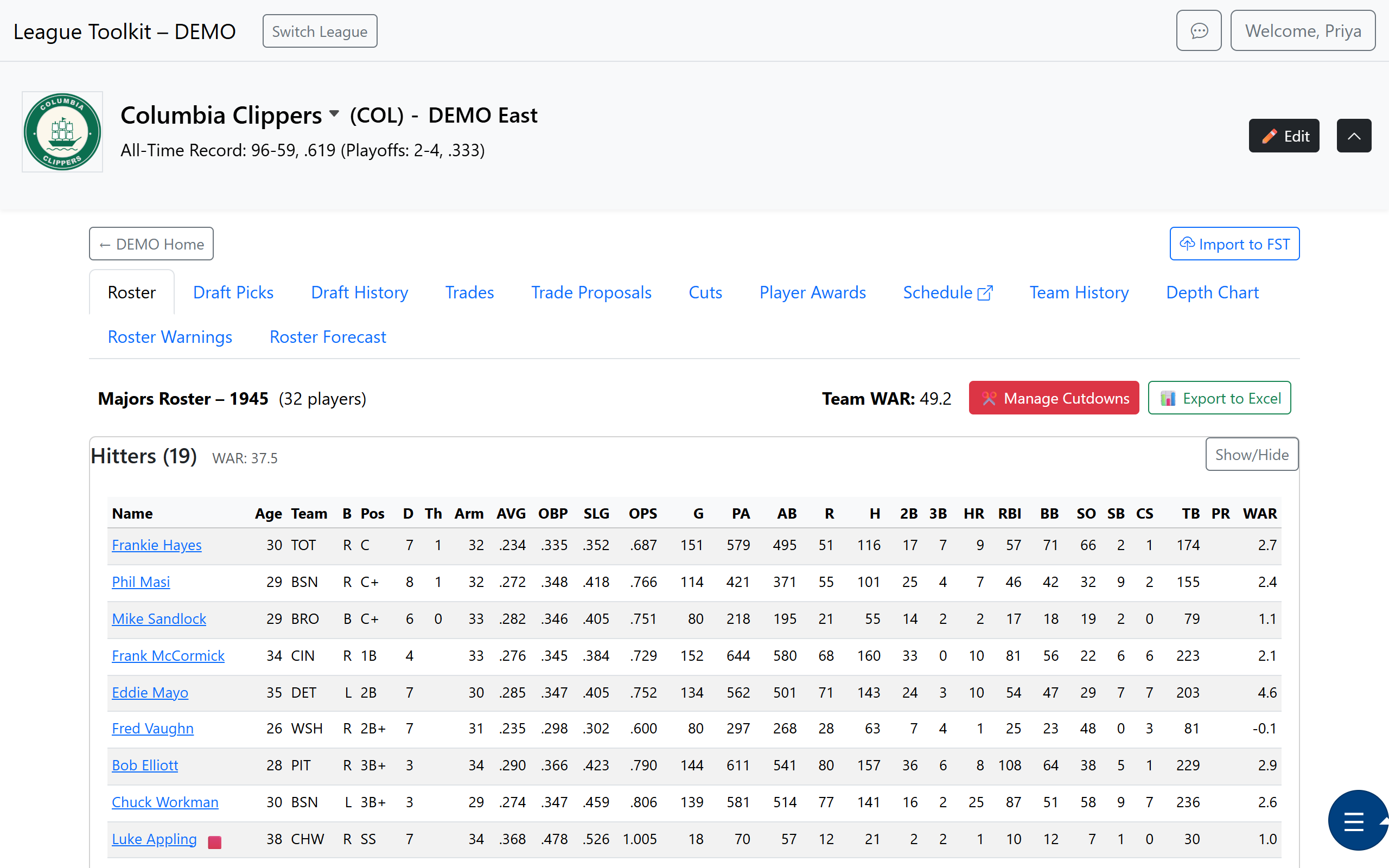
The banner
The coloured band at the top of the page stays in view as you scroll.
| Part | What it is |
|---|---|
| Team logo and name | The team name is a menu: choose it (the small arrow) to jump to any other team in the league. |
| Short name and division | For example (COL) - DEMO East. |
| Owner | The owner's name. Choose it to email the owner; the clipboard icon next to it copies the email address. |
| Micro Manager | Shown only when the team has one. Choose the name to download it. |
| All-Time Record | This team's regular season record, then its playoff record. |
| Championship trophy | Shown when the team has won the league. The number is how many titles; choose it to open the team's Trophy Case. |
| ✏️ Edit | Only on your own team. See Edit your team at the end of this page. |
| Arrow button | Folds the banner away to give you more room. Choose it again to open it. |
If your league uses the Trophy Case, a Trophy Case box with all the team's trophies also appears above the tabs. It is hidden when the team has no trophies.
The buttons row
| Button | When you see it | What it does |
|---|---|---|
| ← (league) Home | Always | Back to your league's dashboard. |
| Message | On another owner's team | Opens a private conversation with that owner. See Messages, League Chat, Watch Rooms and the Calendar. |
| Propose Trade | On another owner's team, in leagues that take trade proposals in League Toolkit | Starts a trade with that team. See Propose a trade, and answer one. When the trade window is closed the button is grey with a lock and cannot be chosen. |
| Email Results | On your own team, in leagues that use it | Upload your results file and email it to the league with a write-up. |
| Import to FST | When you are signed in, in baseball, hockey and football leagues | Copies this team's roster into your Fantasy Stat Tracker account. It needs an FST subscription; without one, it tells you about FST instead. |

The tabs
The tabs appear in this order. Tabs not marked otherwise are on every team page.
| Tab | When you see it |
|---|---|
| Roster | Always. It opens first. |
| Prospects | Leagues that keep prospects. |
| Draft Picks | Always. |
| Draft History | Always. |
| Trades | Always. |
| Trade Proposals | Leagues that take trade proposals in League Toolkit. |
| Salary Cap | Leagues with a salary cap. |
| Cuts | Always. |
| Player Awards | Always. |
| Schedule | Leagues with a schedule (see below). |
| Team History | Always. |
| Franchise History | Teams that took over from an earlier team in the league. |
| Depth Chart | Only on your own team. Baseball, hockey and football. |
| Roster Warnings | Baseball leagues that have roster warnings turned on. |
| Roster Forecast | The last tab. Retro baseball and hockey leagues have one kind; other baseball, hockey and football leagues have another (see below). |
Roster
Your players for the current season, with a bar at the top showing the roster name and year, the number of players and the Team WAR.
- ✂️ Manage Cutdowns appears in the bar on your own team while your league's roster cutdowns are open. See Cut down your roster.
- 📊 Export to Excel downloads the roster as a spreadsheet.
- In salary leagues the bar shows Total Team Salary. Its (details) link opens the Salary Cap tab.
- In contract leagues the bar shows a contract summary, and the lists have TERM and END columns. An end year in red has already passed.
- Choose a player's name to open his player card in a new tab.
- A small red square after a name means the player is on the team's trade block.
- A player who did not play in the stats season shows DNP (Did Not Play) instead of stats.
- Every section has a Show/Hide button, and you can choose a column heading to sort by it.
The sections depend on the sport:
| Sport | Sections |
|---|---|
| Baseball | Hitters and Pitchers, each with its WAR total, then Inactive / MR List when the team has players on it. Depending on the game your league plays, also Fielding Ratings or Games by Position. |
| Hockey | Forwards, Defensemen and Goalies, then Games by Position: the real games played by your roster at each position. Some leagues also show Schedule Coverage: green means you have enough games to cover the full schedule at that position, red means you are short. |
| Football | Quarterbacks, Skill Players, Offensive Line, Defense, Kickers and Punters, then 🩹 Inactive List when the team has players on it. |
Prospects
Your prospects: position, name, real team, level and the draft they came from. On your own team, a 📝 My Prospect Notes box lets you keep notes. Only you can see them (and a co-owner of your team); choose Save Notes to keep your changes.
Draft Picks
Draft Picks Owned: every pick the team holds in coming drafts, including picks it got in trades. Each row shows the year, the team the pick came from, the round and, for a traded pick, the transaction number.
Draft History
Two lists of the players this team has drafted: First Round Draft Pick History, then Complete Draft History.
Trades
Trade History: every trade and other transaction this team was part of, newest first, with the transaction number, date and details.
Trade Proposals
On your own team this tab is where you answer and track trade offers. A red number on the tab means offers are waiting for you.
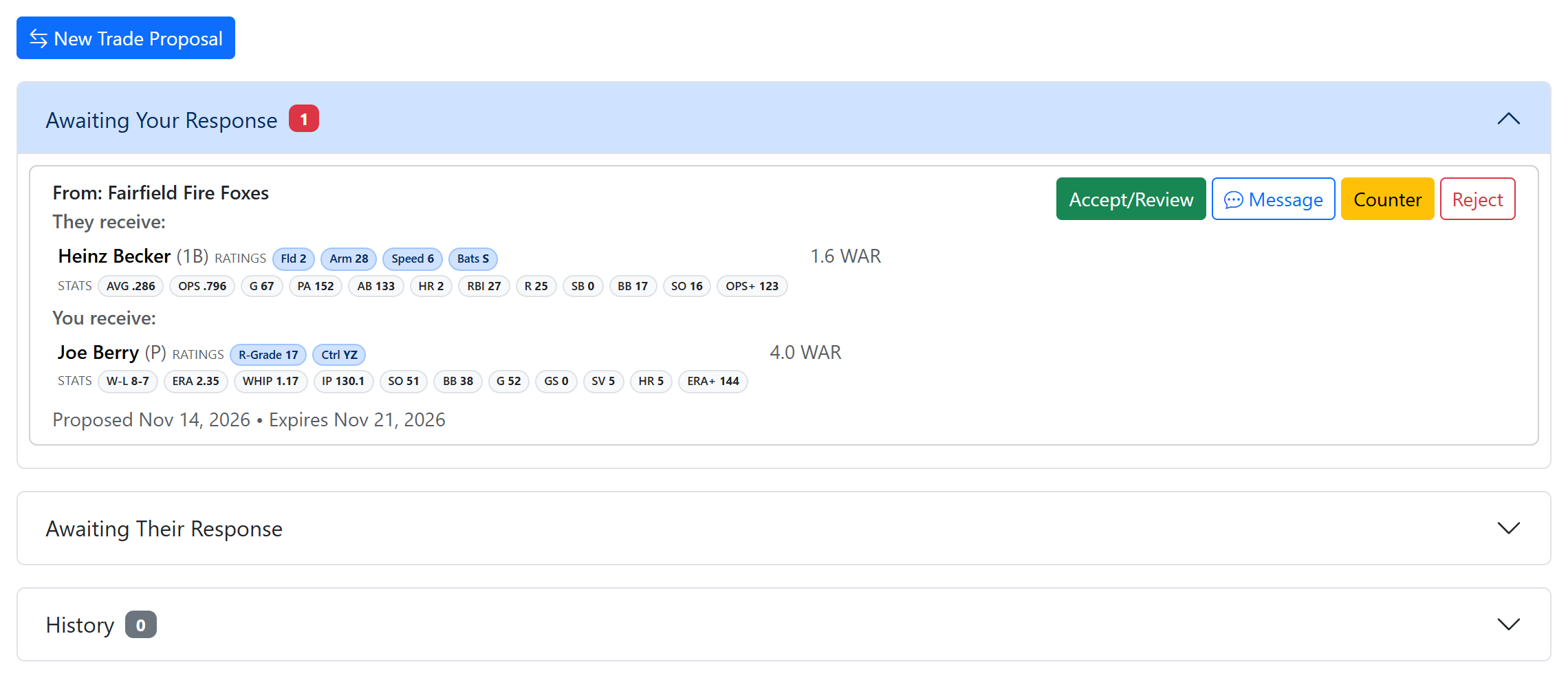
- New Trade Proposal: choose a team under Propose to: and choose Go.
- Awaiting Your Response: offers made to you. Buttons: Accept/Review, Message (talk about it without answering), Counter and Reject.
- Awaiting Their Response: offers you made. Buttons: View, Message, Revise and Withdraw.
- History: finished proposals, with their status.
A red speech bubble with a number on an offer means unread messages about it. When the trade window is closed, a yellow note says so and you cannot make new offers.
On another owner's team page this tab shows only the proposals between your team and theirs. For step by step help, see Propose a trade, and answer one.
Salary Cap
The team's Salary Cap, what is Committed, the Open Cap left, and the open money per roster spot still to fill, then a list of players and their values.
Cuts
Team Cut History: players this team has cut, by year, with the drop date and any comment.
Player Awards
Player Awards: league awards won by this team's players, by year.
Schedule
- In leagues that enter game results in League Toolkit, Schedule is a tab: this season's games with the date, opponent, result and starters.
- In other leagues that have a season schedule, Schedule has a small arrow icon. It is a link, not a tab: it opens the league's schedule page, showing this team's games.
Team History
Historical Team Stats: the team's record season by season, for the regular season and each playoff round it played. Hockey adds points; football adds points for and against. A season still being played is marked as in progress.
Franchise History
When this team took over from an earlier team in the league, this tab shows the Franchise Timeline (every team in the chain, newest first) and Franchise Season History. The banner's record is this team's own record only; the whole franchise's record is here.
Depth Chart
This tab is private: other owners do not see it on your team. Choose a player for each spot; your choices save on their own, and the top of the tab shows Saving… then Saved.
| Sport | What you set |
|---|---|
| Baseball | Batting Order (separate lineups against right-handed and left-handed pitchers when your league uses them) and the Rotation. |
| Hockey | Forwards, Defense and Goalies, with a GP Plan and Line Coverage that show whether your bench has enough games to fill each spot for the season. |
| Football | Offense, Defense and Special Teams. |
Players not yet placed are listed under Available.
Roster Warnings
Baseball only, when your league turns it on. It checks whether your roster's real stats cover a 162-game season: at-bats at each position and innings for your pitching staff, each with what is needed and a status.
Roster Forecast
- Retro baseball and hockey leagues: how your current roster's players did in the real seasons your league will play next, with Team Totals by Season and a section for each season. 📊 Export to Excel downloads it.
- Other baseball, hockey and football leagues: a season preview of your roster from Fantasy Stat Tracker (FST). A star on the tab shows your FST status. Without an FST subscription the tab explains what FST is instead.
Edit your team
Choose ✏️ Edit in the banner of your own team to open Edit Team. There you can:
- set the team's colours (Border Color, Text Accent Color, Banner Color, Team Text Color, Banner Text Color) and turn on Use Gradient Background;
- choose 🔍 Assign/Change Micro Manager;
- under Upload New Logo, choose a JPG, PNG or WebP picture of up to 2 MB.
Choose 💾 Save to keep your changes, or Cancel.
To see another team's roster, choose the team name at the top of any team page and pick the team from the list.